
Whether you are trying to connect a new device, help a friend get online, or simply recover a forgotten credential, knowing how to find Wi-Fi password on iPhone is an essential skill. For years, Apple prioritized security by hiding network keys behind asterisks. However, with recent updates like iOS 16 and the upcoming Passwords app iOS 18, retrieving these keys has become significantly easier.
This comprehensive guide covers every method available, from the native settings in modern iOS versions to advanced workarounds for an older iPhone Wi-Fi password. We will explore how to view Wi-Fi password on iPhone, sync via iCloud Keychain Wi-Fi, and even access router settings iPhone Wi-Fi menus for difficult scenarios.
Quick Answer: To view your Wi-Fi password on an iPhone running iOS 16 or later, open Settings, tap Wi-Fi, and select the information icon (i) next to your connected network. Tap the hidden password field; your iPhone will use Face ID or Touch ID to reveal the text, which you can then copy or share.
The Easiest Method: View Wi-Fi Password on iPhone (iOS 16 and Later)
Before iOS 16, viewing a saved password directly on your device was impossible without jailbreaking. Now, Apple allows you to function as your own iPhone Wi-Fi password viewer. This feature works for iOS 16 Wi-Fi password retrieval as well as iOS 17/18 Wi-Fi password location.
Steps to Reveal Current Network Password
If you are currently connected to the network, follow these steps:
- Open Settings: Navigate to the Settings app on your Home Screen.
- Select Wi-Fi: Tap on the Wi-Fi menu to see available networks.
- Find Your Network: Locate the network you are currently connected to (indicated by a blue checkmark).
- Tap the Info Button: Tap the blue (i) icon on the far right of the network name.
- View Password: You will see a field labeled “Password” hidden by dots. Tap this field.
- Authenticate: Use Face ID Wi-Fi password authentication, Touch ID Wi-Fi password scan, or your device passcode.
- Copy: Once revealed, the option to “Copy” will appear, allowing you to paste it elsewhere.
How to Find Previously Connected Wi-Fi Passwords on iPhone
What if you aren’t at the location anymore but need the password for a network you visited last week? You can find previously connected Wi-Fi passwords on my iPhone easily using the managed networks list.
Using Wi-Fi Settings (iOS 16+)
- Go to Settings > Wi-Fi.
- Tap the Edit button in the top-right corner of the screen.
- Authenticate with Face ID or Touch ID.
- You will see a list of saved network passwords iPhone has stored historically.
- Scroll to find the network name, tap the (i) icon, and tap the hidden password to reveal it.
Using the Passwords App (iOS 18)
With the introduction of the dedicated Passwords app iOS 18, Apple has centralized credential management.
- Open the Passwords app.
- Select the Wi-Fi category.
- Search for the network name (SSID).
- Tap the entry to view the network security key iPhone has stored.
How to Share Wi-Fi Password from iPhone to Other Devices
If your goal is simply to get a friend online, you might not need to view the text at all. You can use the Apple ecosystem’s proximity sharing.
Requirements for “Share Wi-Fi iPhone” Feature
- Both devices must have Wi-Fi and Bluetooth turned on.
- Both devices must have the other person’s Apple ID email address saved in their Contacts.
- The sharing device must be connected to the Wi-Fi network.
Steps to Share:
- Unlock your iPhone and ensure it is connected to the Wi-Fi.
- Have your friend select the same Wi-Fi network on their device.
- A pop-up card will appear on your screen asking: “Do you want to share the Wi-Fi password for [Network Name] with [Friend]?”
- Tap Share Password.
- Their device will connect automatically.
Note: This answers the common query, “How to share Wi-Fi password from iPhone to another iPhone?” without ever exposing the actual characters.
Retrieving Wi-Fi Passwords on Older iPhones (Pre-iOS 16)
If you are running iOS 15 or earlier, you cannot see the password directly in Settings. You must use alternative methods like iCloud Keychain Wi-Fi sync or router access.
Method 1: iCloud Keychain Sync (Requires a Mac)
If you use iCloud Keychain, your Wi-Fi data syncs across devices. You can retrieve a Wi-Fi password from iCloud Keychain using a Mac connected to the same iCloud account.
- On your iPhone, ensure iCloud Keychain is on (Settings > [Your Name] > iCloud > Passwords and Keychain).
- On your Mac, open System Settings (or System Preferences) and ensure Keychain is active.
- Open the Keychain Access app on your Mac (Cmd + Space, type “Keychain Access”).
- In the search bar, type the name of the Wi-Fi network.
- Double-click the network name in the list.
- Check the box that says Show password.
- Enter your Mac’s administrator password to reveal the key.
Method 2: Access Router Settings from iPhone
If you don’t have a Mac, you can try to find the password through the router’s internal settings page. This is technically how do I find my router password on my iPhone (the admin password), which then lets you see the Wi-Fi key.
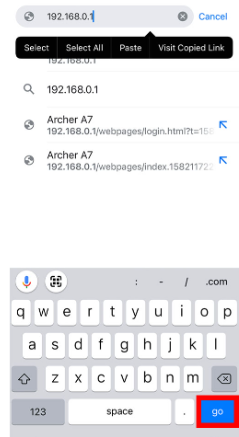
- Find the Router IP: Go to Settings > Wi-Fi and tap the (i) next to your network. Scroll down to the “IPV4 ADDRESS” section and note the IP address next to Router (usually 192.168.1.1 or 192.168.0.1).
- Open Safari: Type that IP address into the address bar (e.g., http://192.168.1.1).
- Login: You will see a login page. If you haven’t changed the default router credentials, try standard combos like username:
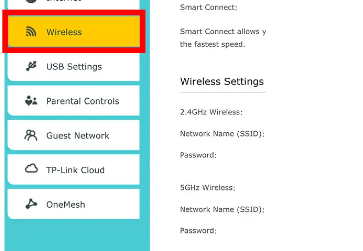
admin/ password:admin(or check the sticker on the physical router). - Navigate to Wireless Settings: Once logged in, look for tabs named “Wireless,” “WLAN,” or “Wireless Security.”
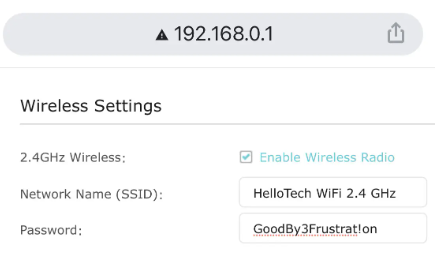
- View Key: Locate the field labeled “WPA Pre-Shared Key” or “Password” to see your Wi-Fi password.
How to Find Personal Hotspot Password
Sometimes users confuse their home Wi-Fi with their mobile hotspot. To perform a Personal Hotspot password view:
- Go to Settings.
- Tap Personal Hotspot.
- Look at the Wi-Fi Password field. This is the key other devices need to tether to your iPhone’s data.
Troubleshooting: Why Can’t I See My Wi-Fi Password on My iPhone?
Even with the right steps, issues occur. Here are common reasons and fixes:
- Face ID/Touch ID Failed: If biometric authentication fails repeatedly, you must use your device passcode. Ensure your screen is clean and your face/finger is not obstructed.
- Corporate Networks: If the network is an enterprise connection (WPA2-Enterprise) installed via a configuration profile (common in schools or offices), you often cannot view the password. The system hides these for security.
- Restrictions Enabled: Check Screen Time > Content & Privacy Restrictions. If specific account changes are blocked, you might not be able to access password settings.
- Not the Network Owner: You can only view passwords for networks you have successfully connected to and saved. You cannot view a password for a random network you haven’t accessed before.
FAQ: Common Questions About iPhone Wi-Fi Passwords
What is the easiest way to find a Wi-Fi password on iPhone?
The easiest way is using an iPhone with iOS 16+. Simply go to Settings > Wi-Fi, tap the ‘i’ icon, and tap the hidden password field.
Can you find Wi-Fi password without iOS 16?
Yes, but not directly in the iPhone settings. You must use a synced Mac via iCloud Keychain or log into the router’s IP address through Safari to view the credentials.
Where are saved Wi-Fi passwords stored on iPhone?
They are stored in the device’s secure enclave (Keychain). On iOS 18, they are visually accessible via the Passwords app. On iOS 16/17, they are accessible via the Wi-Fi Settings “Edit” menu.
Is there an app to find Wi-Fi passwords on iPhone?
Third-party apps generally cannot access your system’s secure Wi-Fi passwords due to Apple’s sandboxing privacy rules. The native Settings or Passwords app (iOS 18) are the only legitimate viewers.
How do I retrieve a Wi-Fi password from iCloud Keychain?
If you cannot view it on your phone (older iOS), sync your Keychain to a Mac, open the “Keychain Access” utility on the Mac, find the network name, and select “Show Password.”
How to find wifi password on iphone if I forgot it?
If you forgot it but are still connected, use the iOS 16 view method. If you are not connected and have forgotten it entirely, you may need to reset your router to factory settings (press the reset button on the back of the router) and create a new password.

Kaleem
My name is Kaleem and i am a computer science graduate with 5+ years of experience in Computer science, AI, tech, and web innovation. I founded ValleyAI.net to simplify AI, internet, and computer topics also focus on building useful utility tools. My clear, hands-on content is trusted by 5K+ monthly readers worldwide.