
Arrow symbols (→, ←, ↑, ↓) are Unicode characters that cannot be typed directly using standard keyboard keys. To insert these symbols, you must use specific operating system shortcuts, character pickers, or text-replacement features.
For example You’re halfway through a document, you need a quick → to show a process flow, and your first instinct is to hit the arrow key on your keyboard. Nothing happens except your cursor sliding across the page. The actual arrow symbol lives somewhere else entirely, and which “somewhere else” depends on your operating system, your app, and sometimes your font.
This guide walks through every reliable method, organized by where you’re actually typing not a generic list you have to decode yourself.
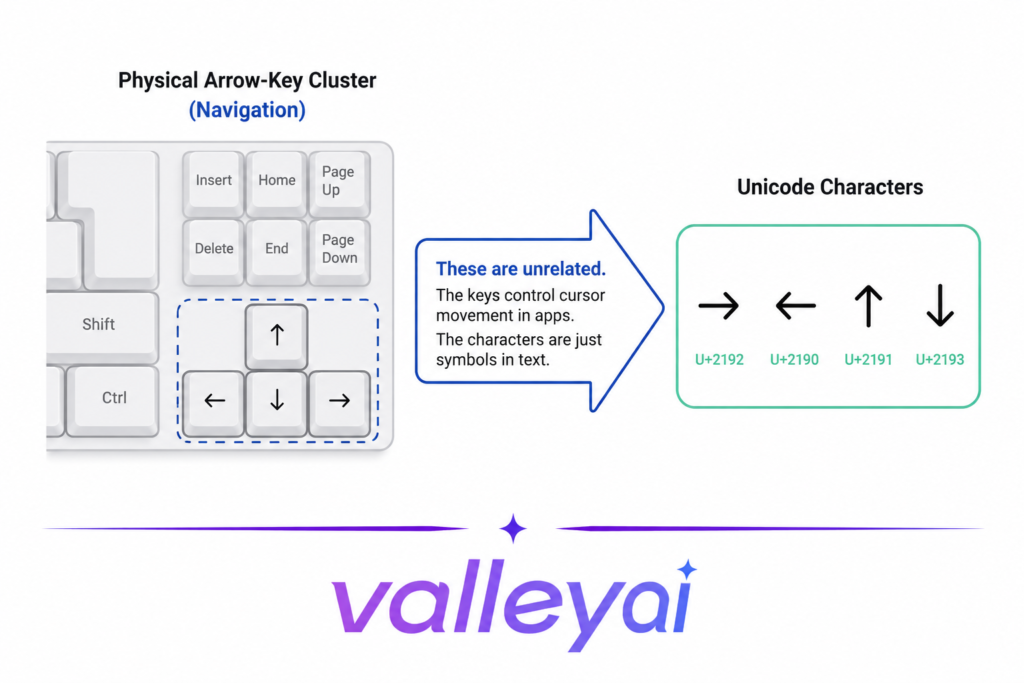
Arrow Keys Move Things. Arrow Symbols Are Characters. They’re Not the Same Key.
The arrow keys on a keyboard are navigation controls, not text characters pressing one sends a cursor-movement or scroll command to whatever app has focus.
The arrow symbol (→, ←, ↑, ↓) is a text character from the Unicode standard, the same category as a letter or number, and it has to be inserted the way any special character is: through a code, a picker, or a copy-paste. This is why searching your keyboard for a dedicated arrow-symbol key is a dead end on virtually every standard keyboard, that key doesn’t exist.
The Quick-Reference Table (Copy, Paste, Move On)
If you just need the symbol right now, here’s the fastest path for each platform.
| Arrow | Windows Alt Code | Word Alt+X | Mac | HTML |
|---|---|---|---|---|
| → | Alt + 26 | 2192 then Alt+X | Character Viewer | → or → |
| ← | Alt + 27 | 2190 then Alt+X | Character Viewer | ← or ← |
| ↑ | Alt + 24 | 2191 then Alt+X | Character Viewer | ↑ or ↑ |
| ↓ | Alt + 25 | 2193 then Alt+X | Character Viewer | ↓ or ↓ |
| ↔ | Alt + 29 | 2194 then Alt+X | Character Viewer | ↔ or ↔ |
The Alt-code values above and the underlying Unicode code points come from Windows’ legacy character table and the Unicode Consortium’s official Arrows code chart (U+2190–U+2194) — worth bookmarking if you ever need an arrow variant beyond the basic four.
Windows: Alt Codes Are Fast, But They Have Rules
To type an arrow symbol on Windows using Alt codes, hold the Alt key, type the numeric code on your numeric keypad with Num Lock on, then release Alt.
- Click into the text field where you want the arrow.
- Confirm Num Lock is on — this trips up more people than any other step.
- Hold Alt.
- Type 26 on the numeric keypad for →, 27 for ←, 24 for ↑, or 25 for ↓.
- Release Alt. The symbol appears.
Alt codes are a leftover from the pre-Unicode ASCII/DOS era, so they only work reliably in apps that still honor that old code page Word, Notepad, and most desktop software generally cooperate. Browsers and web apps are hit or miss. I’ve had Alt+26 get silently swallowed in a Chrome address bar and in Slack’s message box more times than I can count, because those apps intercept Alt for their own shortcuts. If nothing happens after four keystrokes, that’s usually why not user error.
No numeric keypad? Most laptops hide a virtual numpad inside the letter keys, activated with Fn + Num Lock (sometimes labeled NmLk, often on the F11 key). Hold Fn while entering the Alt code if a dedicated numpad isn’t visible on your keyboard.
Word and Outlook Have a Better Trick Than Alt Codes
Because Word runs on Unicode rather than the old ASCII code page, it supports a second method that’s more reliable and covers thousands more characters than Alt codes ever could: type the character’s hexadecimal Unicode value, then press Alt+X to convert it.
Type 2192, press Alt+X, and it becomes →. Type 2190, press Alt+X, and it becomes ←. This works because Word can read the hex code you just typed and swap it for the matching Unicode character on the spot, using the same conversion Microsoft documents in its official guide to inserting ASCII or Unicode character codes.
The feature has existed in Word for Windows since Office XP, and it also works in Outlook’s classic editor, since Outlook’s email composer runs on the same Word engine. If Alt+X converts the wrong text, select just the four digits before pressing it, or Word may try to include whatever character sits immediately before your cursor.
For anyone who types arrows constantly, Word’s AutoCorrect can automate this entirely: go to File > Options > Proofing > AutoCorrect Options, add a replacement rule (for example, -> becomes →), and every future arrow typed that way converts automatically as you type it.
Mac Doesn’t Have Arrow Alt Codes — Use the Character Viewer
This trips up a lot of people coming from Windows: macOS has no built-in Option-key numeric combo for arrows the way it does for accented letters (Option+E, E for é). Some third-party keyboard layouts enable Option+Unicode-hex input, but that’s not the default behavior, and relying on it will break the moment you’re on someone else’s Mac.
The reliable, no-setup method is the Character Viewer:
- Press Fn (or the 🌐 Globe key) + E, or go to Edit > Emoji & Symbols in most apps.
- If the compact emoji panel opens instead, click the expand icon in the top-right corner to open the full Character Viewer.
- Type “arrow” into the search field.
- Double-click the arrow you want to insert it directly into your document.
Apple documents this workflow in its official guide to using emoji and symbols on Mac, and the viewer also lets you mark arrows as favorites, so after the first search you can access them in two clicks instead of four. For a permanent shortcut, macOS’s Text Replacement (System Settings > Keyboard > Text Input > Edit) lets you set something like -> to auto-expand to → in any app, similar to Word’s AutoCorrect trick.
Linux Has the Fastest Method, and Almost Nobody Mentions It
Most GTK and Qt-based Linux desktops — GNOME, KDE, and most distros built on them support direct Unicode input through Ctrl+Shift+U, followed by the hex code, then Enter or Space.
- Press and hold Ctrl+Shift+U.
- Release, and you’ll usually see an underlined “u” appear.
- Type the hex code:
2192for →,2190for ←,2191for ↑,2193for ↓. - Press Enter or Space to confirm.
This is arguably more consistent than either the Windows or Mac methods, since it works system-wide across nearly any GTK app without switching input sources or opening a picker.
I’ve watched experienced Linux users spend a full minute digging through an emoji picker for an arrow when Ctrl+Shift+U would’ve taken four seconds. it’s underused mostly because it’s undocumented in most desktop environments, not because it’s unreliable. If your distro uses IBus (most do by default), this works out of the box; if it doesn’t respond, check that IBus or a Unicode input method is enabled in your input settings.
Google Docs, Excel, and Typing Arrows on a Phone
Google Docs: Go to Insert > Special characters, then either search “arrow” or draw the shape freehand in the drawing pad that appears Docs will suggest matching Unicode characters as you draw.
Excel: The same Alt codes from the Windows section work directly inside cells (Alt+26 for →, and so on), since Excel shares Word’s underlying Office input handling.
iPhone: Arrow symbols live in the emoji keyboard’s symbol section tap the globe/emoji icon, then the “123” or symbols tab, and search or scroll to Arrows.
Android: Tap ?123 on the standard keyboard, then the symbols page (often marked =\<), where a dedicated arrows row is usually present by default on Gboard and most manufacturer keyboards.
For Developers: HTML, CSS, and Raw Unicode
| Arrow | HTML Named Entity | HTML Numeric | Unicode Code Point |
|---|---|---|---|
| → | → | → | U+2192 |
| ← | ← | ← | U+2190 |
| ↑ | ↑ | ↑ | U+2191 |
| ↓ | ↓ | ↓ | U+2193 |
| ↔ | ↔ | ↔ | U+2194 |
Any of these render identically in a browser named entities are more readable in source code, numeric entities are safer if you’re generating markup programmatically and don’t want to rely on named-entity support. For CSS content properties (icon fonts, pseudo-element arrows), use the escaped hex form: content: "\2192";.
Which Method Should You Actually Use?
Skip the trial-and-error with this quick decision framework:
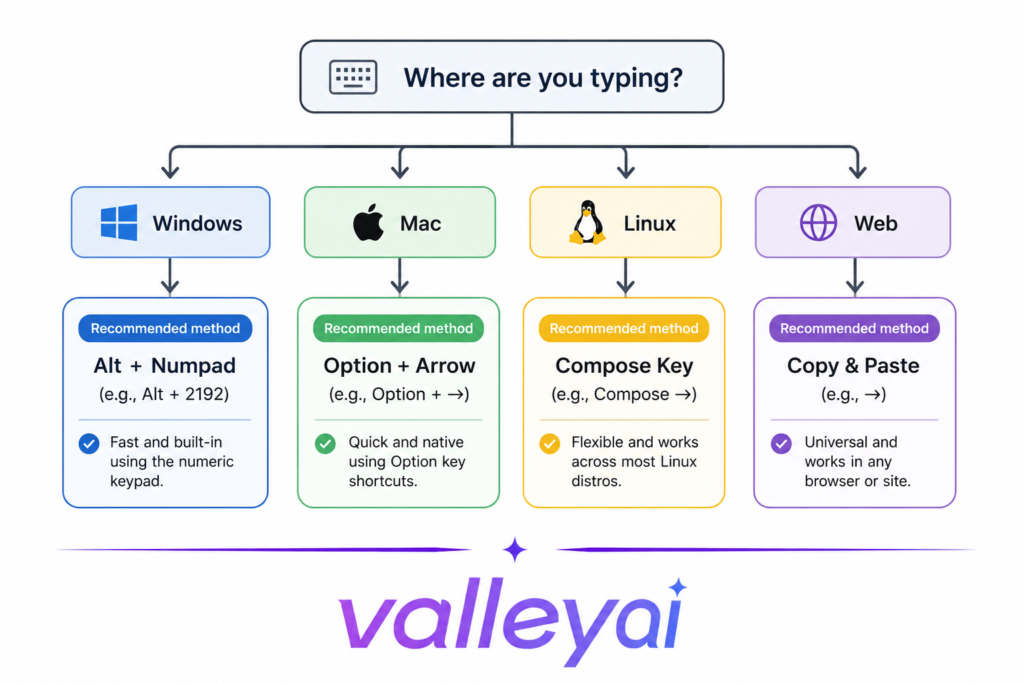
- Typing arrows constantly in Word or Outlook → set up AutoCorrect once; never think about it again.
- One-off arrow in a random app (browser, chat, PDF form) → copy-paste from the quick-reference table above; it’s more reliable than any code across inconsistent apps.
- On a laptop with no numpad → use Fn+Num Lock for Alt codes, or copy-paste if that fails.
- On a Mac → Character Viewer for occasional use, Text Replacement if it’s frequent.
- On Linux → learn Ctrl+Shift+U once; it will save more time than any other method on this list.
- Building a webpage or app → HTML entities or the raw Unicode character, never Alt codes (they’re a Windows input concept, not a web standard).
Frequently Asked Questions
Is there an arrow symbol built into the keyboard itself?
No. The physical arrow keys are cursor-navigation controls, not text characters — the → ← ↑ ↓ symbols have to be inserted through a code, picker, or paste, the same as any other special character.
Why did my arrow turn into a completely different symbol?
This almost always means the wrong code type was used for the app ASCII decimal Alt codes and Word’s Unicode Alt+X codes are different systems that happen to overlap in some apps and conflict in others. If the result looks wrong, check whether the app expects a decimal Alt code or a hex Alt+X code before assuming the method is broken.
Can I make my own keyboard shortcut for arrows?
Yes Word’s AutoCorrect, macOS’s Text Replacement, and Windows text-expander tools like PowerToys or ready-made third-party apps all let you map a short string like -> to → so you never touch a code again.
Do Alt codes work the same in Excel as in Word?
Yes, standard Alt codes (Alt+26, Alt+27, Alt+24, Alt+25) work the same way in Excel cells, since both share the same underlying Office text-input layer.
Mastering this one input pattern code or picker, by platform unlocks far more than four arrows. The same Alt+X and Ctrl+Shift+U methods work for any of the roughly 140,000 characters in the Unicode standard, from math operators to accented letters to symbols you haven’t needed yet. The arrow was never really the hard part; knowing which input method your current app actually respects was.

Kaleem
My name is Kaleem and i am a computer science graduate with 5+ years of experience in Computer science, AI, tech, and web innovation. I founded ValleyAI.net to simplify AI, internet, and computer topics also focus on building useful utility tools. My clear, hands-on content is trusted by 5K+ monthly readers worldwide.