

A box the size of a sandwich sits on the desk and claims to be a full computer. The claim holds. It runs Windows, drives two monitors, and opens the same programs a tower runs. The question is what the size costs, and the answer sits in three numbers: the watts the box can shed, the speed it can hold, and the parts its case can hold.
That trade shapes everything that follows, because a mini PC works the same way a tower works. The parts match, and so do the jobs. The parts are smaller, closer together, and cooled harder. Three real boxes carry the numbers behind every claim.
What happens inside when you open a program
Every program on a mini PC follows the same four-step cycle a tower uses. The processor fetches an instruction from memory, decodes it, executes it, and stores the result. The cycle repeats billions of times a second. A browser tab, a spreadsheet, and a video call all run on that loop (a spreadsheet recalculating one cell runs the same loop, just on a smaller job). That’s the processor’s whole job, and how a processor works is the same cycle seen close up.
Opening a browser shows the cycle in action. The operating system reads part of the browser from the SSD into RAM, and the processor works through the program instructions while the graphics unit draws the page. The network hardware exchanges packets with the router, and the display controller sends the finished image to the monitor through HDMI or DisplayPort.
Nothing in that chain is special to a mini PC. The difference is density. Spread across a large board, a tower’s parts have room for expansion cards, spare drives, and a big heatsink. A mini PC packs those parts onto a compact board, with many controllers built into the processor or soldered beside it. The work’s identical; the packaging is tight.
Does a mini PC run the same software as a tower? Yes. Windows and Linux install on a mini PC as they install on a tower, and the programs open the files a tower opens. Speed on heavy work differs, but compatibility doesn’t change. A program that needs a large graphics card still needs one, and there’s no slot for that card to sit in.
The parts list reads like a laptop parts list for a reason. Mini PCs borrow laptop processors, laptop memory sticks, and laptop-style cooling, then drop the screen, the keyboard, and the battery. What stays is a desktop that never moves. A stick PC is smaller still and far weaker, so it sits outside this category.
How much computer fits in a litre
Volume is the number that decides everything else about a mini PC. Three reviewed boxes show the range. The Beelink Mini S12 Pro measures 115 by 102 by 39 millimetres, which works out to 0.46 litres. The Minisforum UM790 Pro measures 130 by 126 by 47 millimetres, or 0.77 litres. The Mac mini M4 measures 127 by 127 by 50 millimetres, or 0.81 litres. A common mid-tower case encloses roughly 30 to 45 litres, so the largest of the three still fits about 40 times into a tower.
I worked the heat figures out from those three boxes, using the sustained power each one holds under load. The S12 Pro holds 20 watts in 0.46 litres, about 44 watts per litre. The UM790 Pro holds 54 watts in 0.77 litres, about 70 watts per litre. The Mac mini holds 65 watts in 0.81 litres, about 81 watts per litre. Every litre of mini PC must shed 40 to 80 watts through vents a few centimetres across, and that shedding job shapes the cooling, the noise, and the speed. I picked three boxes at three sizes for this: the smallest efficient box, a mid-size performance box, and the Mac mini.
Let’s read the table this way. Idle watts are the draw with a display attached, taken from reviewer measurements (a headless box reads lower, so don’t compare the two directly). Load watts are the sustained draw at the wall under a heavy job.
| Box | Volume | Sustained watts | Watts per litre | Idle | Load |
|---|---|---|---|---|---|
| Beelink Mini S12 Pro (Intel N100) | 0.46 litres | 20 W | 43.7 | 9 W | 27 W |
| Minisforum UM790 Pro (Ryzen 9 7940HS) | 0.77 litres | 54 W | 70.1 | 6 W | 82.5 W |
| Mac mini M4 (Apple M4) | 0.81 litres | 65 W | 80.6 | 4 W | 65 W |
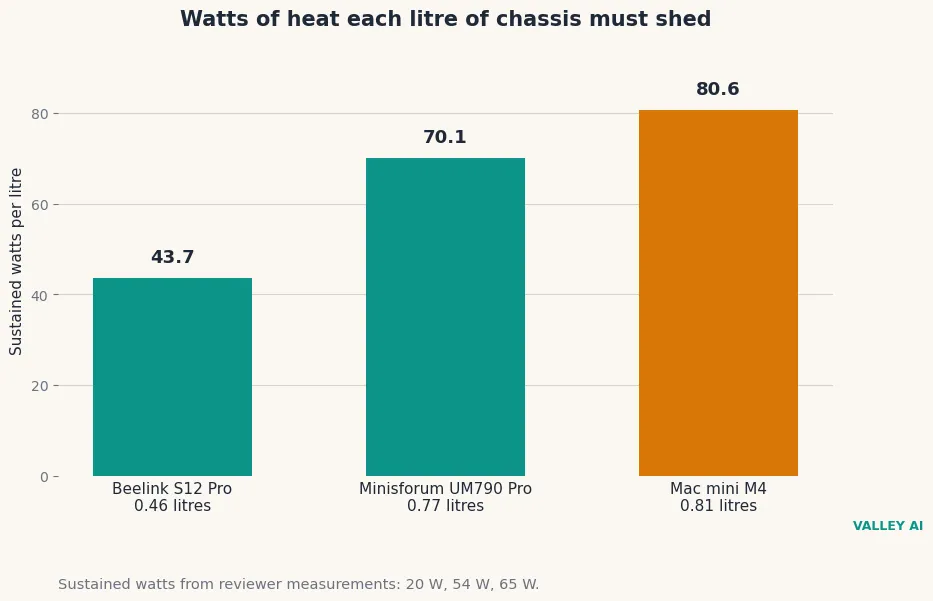
It’s the figure to remember. A tower sheds its heat from a case with room for a heatsink the size of a paperback and fans 120 millimetres across. A mini PC sheds that heat from a box that fits in one hand. The watts per litre figure says how hard that job is, and the three boxes show the cost of pushing it higher: more noise, more heat, or a slower chip.
The three processor classes
Mini PCs use three kinds of processor, and the kind sets the ceiling for the whole box. The first kind is the low-power chip, built for efficiency. Intel’s N100 carries four cores, reaches 3.4 GHz, and holds a 6-watt thermal design power rating. It suits browsing, office work, and media playback, and it idles near 6 watts.
The second kind is the mobile performance chip, borrowed from thin laptops. AMD’s Ryzen 9 7940HS carries eight cores and sixteen threads, reaches 5.2 GHz, and draws 35 to 54 watts depending on the BIOS setting, which is why it handles code compilation, photo work, and light video editing. Apple silicon belongs in this class. The M4 in the Mac mini idles at 4 watts and peaks at 65 watts, with graphics and memory on one chip.
Larger boxes take the third kind: desktop processors, or mobile chips run at desktop power. A few performance mini PCs carry socketed desktop chips or 65-watt mobile chips with bigger coolers. These boxes run closer to a tower, and they lose the silence and the small size that define the category. The chip on the box isn’t the whole story. The cooling decides how much of that chip survives a long job.
Graphics divide along the processor lines. Most mini PCs use integrated graphics built into the processor, sharing system memory with the CPU. That covers office work, streaming, and older games. A few boxes add an external graphics card over USB4, Thunderbolt, or OCuLink, which adds a second enclosure, a second power supply, and a cable. The link carries less bandwidth than a desktop slot, so a card can’t run as fast outside the box as inside a tower.
Memory and storage in a small chassis
Memory in a mini PC comes in two forms. Many models use SO-DIMM sticks in one or two slots (the short modules laptops use, about half the length of a tower’s full-size DIMM). The S12 Pro takes one SO-DIMM stick, and the UM790 Pro takes two DDR5 sticks. Thinner models solder the memory to the board, which saves space and can raise bandwidth, but it fixes the capacity at purchase. If the listing says soldered, buy the memory you’ll need on day one.
Sixteen gigabytes is the practical starting point, and 32 GB suits heavy multitasking, virtual machines, and local AI work. Integrated graphics borrow from system memory, so a graphics-heavy job and a browser full of tabs compete for one pool. The rule holds in a small box: more memory helps more than a faster chip once the basics are covered.
Storage is an SSD in almost every current model, usually an M.2 NVMe stick in one slot, sometimes two. The UM790 Pro carries two M.2 slots. Some boxes add a 2.5-inch bay for a second drive. Check the slot count before you buy, because a single-slot box can’t hold a second drive. An external drive over USB covers the rest, at USB speed.
Upgrades end at memory and storage on most models. The processor is soldered, the graphics are part of the processor, and the ports are fixed. That’s the price of the size. A tower lets you swap the graphics card, add drives, and change the processor. A mini PC asks you to choose the right configuration when you buy it, because the configuration you buy is the one you keep.
Cooling and the throttle point
Heat leaves a mini PC the way air leaves a small room through one window. The processor makes the heat, heat pipes carry it to a heatsink, and a small fan pushes it out through vents. Some boxes skip the fan and use the metal case itself as the heatsink. Fanless boxes run silent, and they top out lower: the case can only shed so much heat before the chip must slow down.
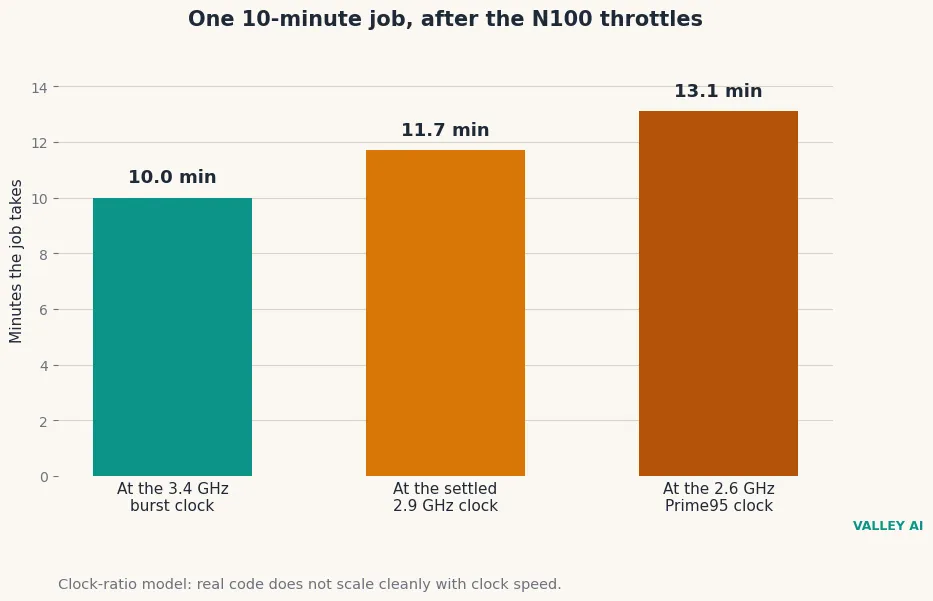
Every processor in a mini PC can run faster for a short burst than it can hold all day. The N100 in the S12 Pro boosts to 3.4 GHz and draws 25 watts at the chip for a short burst, then settles at 20 watts. Notebookcheck measured the settled clock at 2.9 GHz in a Cinebench loop and 2.6 GHz under a Prime95 stress test. The burst clock is what’s on the box. The settled clock is the number your work runs at.
I modelled what that drop costs in time. A task that takes 10 minutes at the 3.4 GHz burst clock takes 11.7 minutes at the settled 2.9 GHz clock, and 13.1 minutes at the 2.6 GHz Prime95 clock. I took clock speed alone as the model. Real code doesn’t scale that cleanly, so these figures are ceilings on the slowdown, not measured render times. A video export that leans on the graphics unit or waits on storage slows by less than the clock ratio suggests. A pure number-crunching job slows by about the full ratio.
Why does the same chip run slower in a smaller box? The chip is identical. The cooler isn’t. A tower cooler sheds 65 watts without trying, while a mini PC cooler sheds 20 to 54 watts at full fan speed. The chip protects itself by cutting its clock when the temperature climbs, so it runs slower where the heatsink is smaller and the fan is weaker.
Four checks tell you whether a box holds its speed. Check the bundled adapter wattage before you buy: a 36-watt brick caps the whole system near 36 watts. Leave a hand’s width of clear space around the vents, because a box pushed against a wall recycles its own hot air. Listen at full load: a fan past 37 decibels at arm’s length is working hard. Watch the clock in Task Manager during a long job: if you’re watching it fall and stay down, that’s the throttle at work.
Power: the brick outside and the bill inside
The power supply sits outside the box. A small brick, like a laptop charger, feeds 12 or 19 volts to the mini PC. Voltage regulators inside split it between the processor, the memory, the storage, and the ports. Moving the brick outside keeps heat out of the case and shrinks the box. The cost is a second object on the desk and a cable to manage.
Draw at the wall is small by desktop standards. The S12 Pro idles near 9 watts with a display attached and 6 watts headless. The UM790 Pro idles near 6 watts. The Mac mini idles at 4 watts, the figure Apple lists on its support page. Under load the S12 Pro draws about 27 watts, the UM790 Pro about 80 watts at the wall, and the Mac mini up to 65 watts. I first took the 20-watt figure for the load; that’s the package draw, so the cost table uses the wall figure.
Let’s put dollars on it. At the United States average residential rate of 18.34 cents per kilowatt-hour, one watt left running all year costs $1.61. A 9-watt idle, left on around the clock, costs $14.46 a year. A 4-watt idle costs $6.43. A mid-range tower idling at 45 to 60 watts costs $72.30 to $96.39 a year when it never sleeps either. The cost table lists the yearly bill for each box at idle and under load. Figures cover a machine left on all day and one used eight hours a day.
| Box | Idle, all day | Idle, 8 h a day | Load, 8 h a day |
|---|---|---|---|
| Beelink S12 Pro (N100) | $14.46 | $4.82 | $14.46 |
| Minisforum UM790 Pro (7940HS) | $9.64 | $3.21 | $44.18 |
| Mac mini M4 | $6.43 | $2.14 | $34.81 |
| Mid-range tower (contrast) | $72.30 to $96.39 | $24.10 to $32.13 | $117.82 |
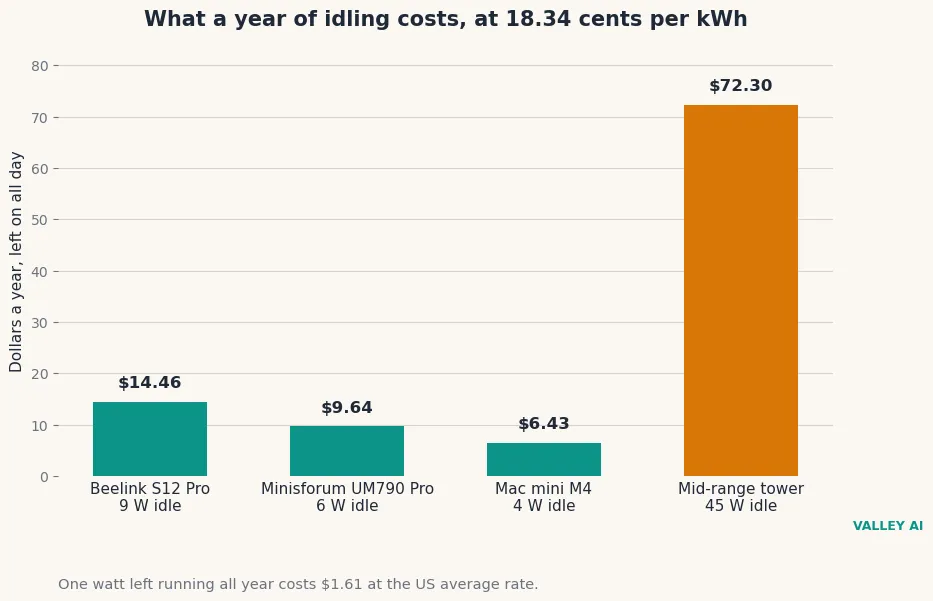
An always-on mini PC is the cheapest server a home can run. Six watts around the clock costs $9.64 a year. A tower left on around the clock idles at 45 watts and costs $72.30. That’s why home servers, media boxes, and network appliances run on mini PCs: the machine never sleeps, and the bill stays small. The saving only holds while the box idles. A UM790 Pro under full load for eight hours a day costs $44.18 a year, which still sits far below a tower under that load.
There’s no battery inside a mini PC. A power cut shuts it down at once, with no graceful save and no standby reserve. A laptop battery keeps a laptop alive when the power cuts out, because the battery is built in. If your supply is flaky, the box wants a small UPS beside it, or work that survives a sudden stop.
Ports, screens, and the first hour
The outside of a mini PC looks ordinary, and that’s the point. HDMI and DisplayPort outputs drive monitors, USB-A and USB-C ports take keyboards, drives, and webcams, and a 2.5-gigabit Ethernet jack wires the box to the network. Wi-Fi 6 or 6E and Bluetooth come built in. The UM790 Pro adds two USB4 ports, which carry 40 gigabits a second and drive a second display or an external graphics enclosure.
Can a mini PC drive two monitors? Yes, on most models. Dual HDMI ports are common, and a USB-C or DisplayPort output adds a second screen where HDMI covers the first. Check the listing for the maximum resolution per port before you buy, because one port may top out at 4K at 30 Hz while the other reaches 60 Hz.
Mounting hides the box entirely. Most mini PCs carry VESA holes and a bracket that bolts to the back of a monitor, so the computer disappears behind the screen. The monitor then looks like an all-in-one, with the box out of sight and the cables short. Leave the vents clear when you mount it: a box pressed flat against a monitor back still needs air.
You can set it up in four steps, and none of them needs a tool.
- Plug the power brick into the wall and the box.
- Connect a monitor, keyboard, and mouse.
- Switch the box on and let the operating system finish its first boot.
- Update the system, then install the programs you use.
The whole job takes under an hour, and the slowest part is the updates.
Where a mini PC fits and where it does not
A mini PC fits any job that wants a real computer in a small, quiet, efficient box. Everyday browsing, office documents, video calls, and streaming all run comfortably, and so do the quiet jobs that suit the shape: a home theatre PC behind a television, an always-on server in a closet, or a small box doing the job of your router. Retro gaming and emulation run well on integrated graphics, and light photo work fits too.
The shape fails where the work needs a ceiling the box can’t reach. Heavy 3D rendering, serious gaming at high settings, and long 4K video exports all pin the processor for minutes at a time. The throttle then takes the speed the box promised. A discrete graphics card has no slot. Internal storage tops out at one or two drives. Memory tops out where the slots end. If that’s your work, you want a tower, and the mini PC is the wrong tool for the job.
Pick the tier by the job. A 6-watt N100 box covers browsing, office work, and a media centre for around $150 to $200. A mid-tier Ryzen box covers development, photo work, and a home server for around $780. A Mac mini covers that ground inside the Apple system, with the quietest fan of the three. Match the chip to your job, check the memory and the slot count before you pay, and leave the vents clear after you set it down.
Frequently asked questions
How long does a mini PC last?
Five to eight years of everyday use is a fair expectation. The fan is usually the first part to wear out, so a box that runs hot and loud ages faster than a cool one. The SSD wears with writes, and a drive that fills past 90 percent slows down and shortens its own life. Keep the vents clear and the drive part empty, and the box outlasts the software it runs.
Can a mini PC stay on all day and night?
A mini PC is built for always-on work, and many stay up for months without a restart. Heat sets the limit. A box with clear vents and a working fan keeps its temperature steady for as long as it runs. A fanless model suits a dusty shelf better than a fanned one, because it has no fan to clog. Restart it after system updates, and leave it running between them.
What is the difference between a mini PC and a Raspberry Pi?
A Raspberry Pi is a single-board computer built around a phone-class ARM chip, aimed at hobbyists and tinkerers. A mini PC is a complete desktop, usually built on the same x86 processors as a laptop, that runs mainstream Windows or Linux out of the box. The Pi costs less and draws less power. The mini PC handles far more software without fiddling, and it carries standard ports, standard storage, and a case that mounts behind a monitor.
Is 8 GB of RAM enough in a mini PC?
For browsing, office documents, and streaming, yes. Eight gigabytes covers a handful of tabs and one program at a time. Heavy multitasking, dozens of tabs, virtual machines, and photo editing all want 16 GB, and local AI work wants 32 GB. Memory is soldered on some models, so check the listing before buying: 8 GB you cannot add to is a limit that stays.
Why is my mini PC fan so loud?
Dust on the heatsink is the usual cause. A clogged vent forces the fan to spin faster for the same cooling, so open the case and clear the dust with compressed air. A box with blocked vents heats up, so move it into open air and keep the intake clear. If the noise started after a BIOS update, check the fan setting: some updates reset the fan curve to full speed.

Kaleem
Kaleem is a Computer Science graduate (Virtual University of Pakistan) and the founder and editor of Valley AI, where he publishes in-depth, tested guides on computer hardware, artificial intelligence, and how the internet works. Every guide is researched from primary sources, tested hands-on where possible, and updated when the facts change.