
If you have ever stared at a DNS_PROBE_FINISHED_NXDOMAIN or ERR_NAME_NOT_RESOLVED error screen, you have likely stumbled upon advice to visit a mysterious URL: chrome://net-internals. For years, this internal Chrome page has been the magic wand for fixing stubborn connection issues.
However, Chrome has evolved. The chrome://net-internals tool you might remember from a few years ago has changed drastically. Features have moved, tabs have disappeared, and mobile support has shifted.
This comprehensive guide acts as the definitive manual for 2026. Whether you are a casual user trying to get a website to load, or a developer looking for the missing Events tab, we will cover everything you need to know about clearing the host cache, flushing socket pools, and using the modern chrome://net-export tool.
The Quick Fix: Clearing DNS Cache and Flushing Sockets
Most of you are here for one reason: a website isn’t loading, and you need to fix it fast. If you are experiencing DNS errors, follow these steps immediately.
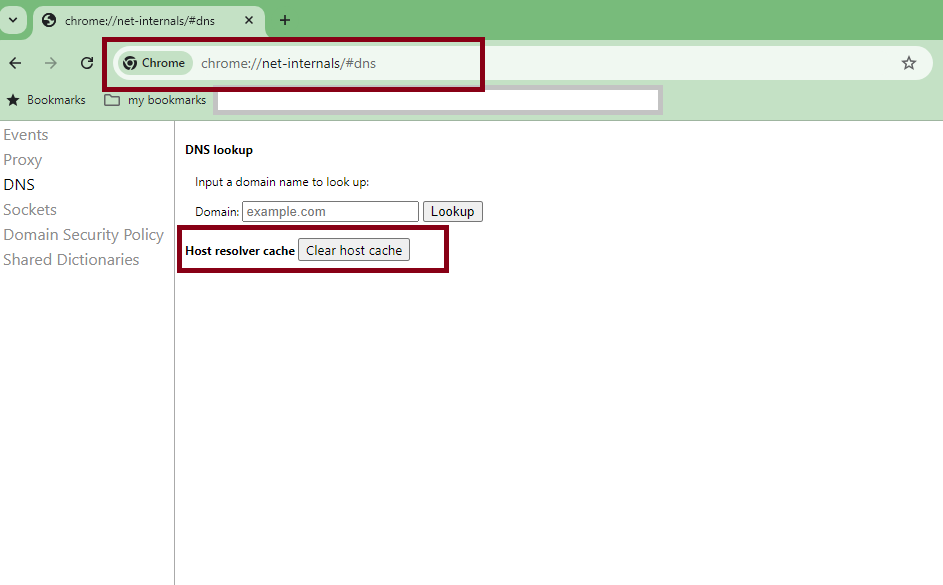
Step 1: Clear Host Cache (The Magic Button)
When you visit a website, Chrome saves (caches) the IP address so it doesn’t have to look it up again. If that IP changes, or if the cache gets corrupted, the site breaks. Here is how to wipe that slate clean:
- Copy and paste this URL into your address bar:
chrome://net-internals/#dns - Look for the button labeled Clear host cache.
- Click it once. Note: You will not see a success message or a spinning wheel. The button clicks silently, but it works instantly.
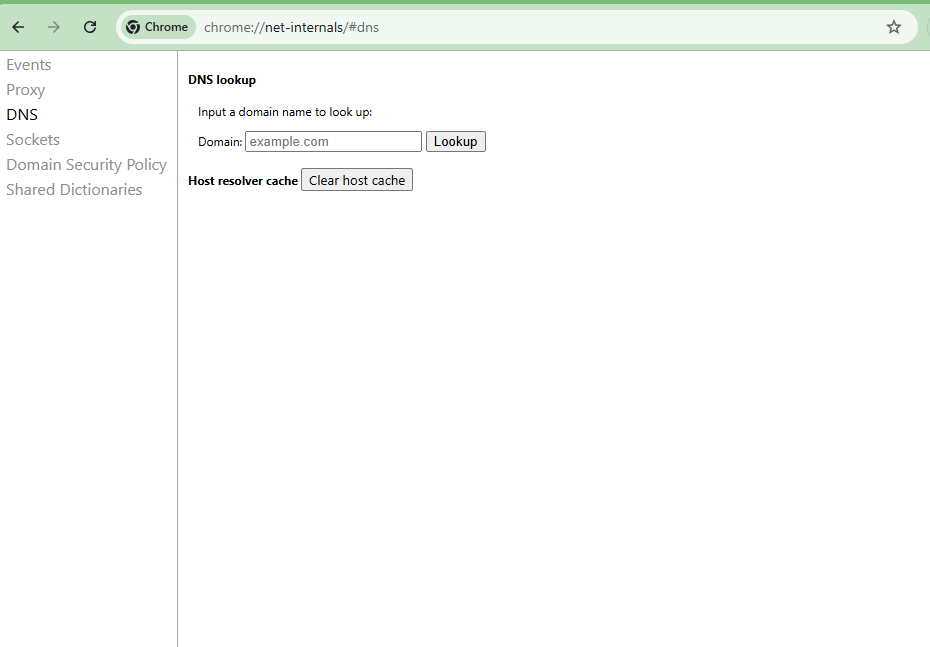
How do I clear my DNS cache in Chrome? To clear the DNS cache in Google Chrome, navigate to chrome://net-internals/#dns in the address bar. Locate the Clear host cache button under the Host Resolver Cache section and click it once. This instantly flushes the internal DNS records, forcing Chrome to retrieve fresh IP addresses for websites.
Reas also: Difference between System DNS and Chrome DNS cache
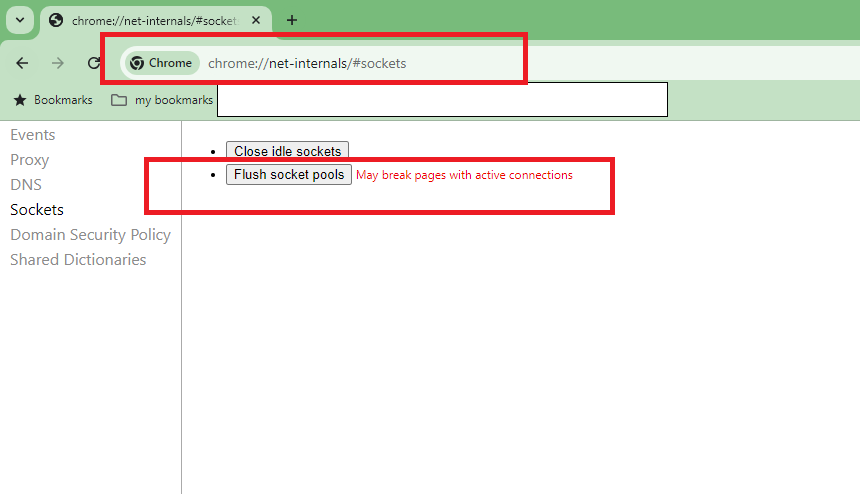
Step 2: Flush Socket Pools
Sometimes clearing the DNS isn’t enough. You also need to sever active connections to the server.
- Click on Sockets in the left-hand sidebar, or navigate directly to
chrome://net-internals/#sockets. - Click the button labeled Flush socket pools.
- Go back to the tab that was giving you an error and refresh the page.
Why is chrome://net-internals Not Working on Android?
This is the most common frustration for mobile users. You read a guide that says go to net-internals on your phone, but when you try it, nothing happens, or the UI is unusable.
The Hard Truth: Modern versions of Chrome on Android and iOS have removed direct access to the chrome://net-internals UI. You cannot use the desktop steps above to clear the DNS cache on a mobile device.
The Android Workaround
Since you cannot access the internal tool, you must use the system-level controls to achieve a similar result:
- Method A (Browser Level): Go to Settings > Privacy and security > Clear browsing data. Ensure “Cached images and files” is selected. While this is less specific than the net-internals tool, it often forces a DNS refresh.
- Method B (System Level): Toggle Airplane mode on for 10 seconds and then off. This forces the Android OS to tear down network stacks and flush local DNS caches.
The Missing Features: Where did the Events Tab Go?
If you are a developer or a power user returning to this tool after a hiatus, you might be panicking. Where is the Events tab? Where is the Timeline view?
Google removed these logging features from chrome://net-internals to reduce the browser’s memory footprint. The tool is now strictly for state management (clearing caches).
Introducing chrome://net-export
To view network logs, you must now use a two-step process involving chrome://net-export and an external viewer.
How do I use chrome://net-export?
- Start Logging: Navigate to
chrome://net-export. - Configure: Select the level of detail (Strip private information is default). Click Start Logging to Disk.
- Reproduce the Issue: Open a new tab and perform the action that is causing the error (e.g., trying to load the broken site).
- Stop Logging: Go back to the net-export tab and click Stop Logging.
- Analyze: You now have a JSON file. Chrome does not read this file natively anymore. You must upload this file to the NetLog Viewer (a web-based tool provided by Google) to see the waterfall charts and event timelines.
Technical Deep Dive: Cache vs. Sockets
To truly troubleshoot, you need to understand what you are actually clicking. What is the difference between clearing cache and flushing sockets?
1. The Host Cache (DNS)
This is like your browser’s address book.
- Scenario: You type
google.com. Chrome looks at its internal “Host Cache” to see if it already knows the IP address. - The Problem: If the website moves to a new server (new IP) but Chrome keeps trying to call the old IP from its address book, you get a connection error.
- The Fix:
chrome://net-internals/#dnswipes the address book, forcing Chrome to ask the DNS server for the new, correct IP.
2. The Socket Pools
This is the active phone line. Chrome uses keep-alive connections (Sockets) to keep the line open with a server so it can load pages faster.
- The Problem: Even if you clear the DNS cache, Chrome might still be holding onto an open connection (socket) to the old server. It’s like trying to call a new phone number while you are still on the line with the previous person.
- The Fix: Flush socket pools aggressively cuts all active lines. When you refresh the page, Chrome is forced to dial a brand new connection using the fresh DNS information.
Troubleshooting Common Errors
Using the tools above, you can resolve the following specific Chrome error codes:
ERR_NAME_NOT_RESOLVED Fix
This error means the domain name cannot be converted into an IP address.
- Primary Cause: Outdated DNS cache or a typo in the URL.
- Solution: Use clear host cache chrome steps first. If that fails, try changing your computer’s DNS settings to Google Public DNS (8.8.8.8).
DNS_PROBE_FINISHED_NXDOMAIN Chrome Fix
“NXDOMAIN” stands for Non-Existent Domain. Chrome thinks the website doesn’t exist.
- Primary Cause: The computer’s OS or browser is caching a negative result (remembering that the site was down).
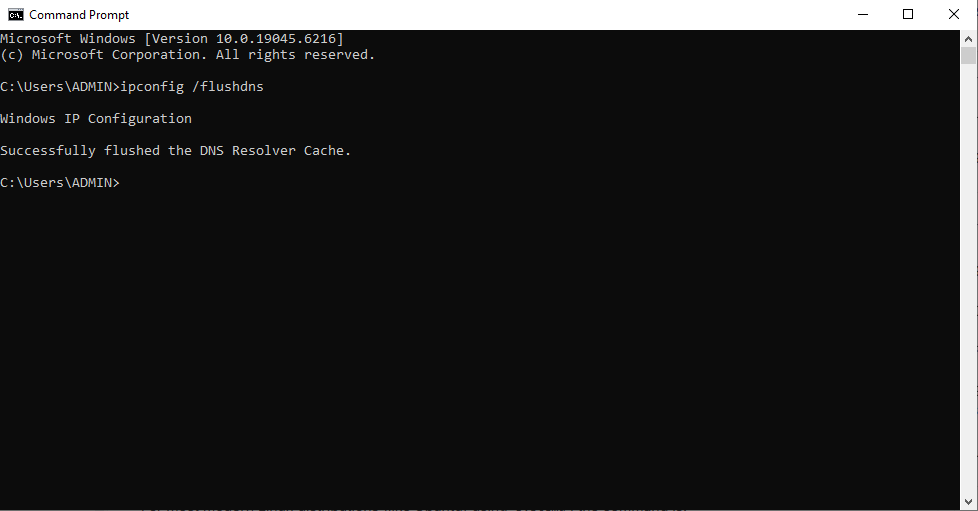
- Solution: This almost always requires both clearing the host cache and flushing socket pools. You may also need to flush your operating system DNS cache (e.g.,
ipconfig /flushdnson Windows).
Frequently Asked Questions (FAQ)
Where did the Tests tab go in net-internals?
Like the Events tab, the Tests tab was deprecated. Modern network testing is best done via the Developer Tools (F12) under the Network tab, or using chrome://net-export for deep internal logs.
Does Clear Browsing Data do the same thing?
Not exactly. Clearing browsing data removes cookies and cached images (static files). It does not always clear the Host Resolver Cache (DNS) or close active Socket Pools immediately. For network errors, chrome://net-internals is far more effective.
Is there a net-internals extension?
Be cautious of extensions claiming to restore this functionality. The safest way to debug network issues is using the native chrome://net-export tool and the official NetLog Viewer web app.
By mastering these internal URIs, you stop guessing why a webpage is broken and start fixing the root cause. Remember: for quick fixes, hit the DNS and Sockets tabs. For deep analysis, switch to Net-Export.

Kaleem
My name is Kaleem and i am a computer science graduate with 5+ years of experience in Computer science, AI, tech, and web innovation. I founded ValleyAI.net to simplify AI, internet, and computer topics also focus on building useful utility tools. My clear, hands-on content is trusted by 5K+ monthly readers worldwide.