
The cheat sheet immediate keyboard shortcut to shutdown for mac and windows computer or laptop. If you need to power down right now, use the sequence matching your operating system. Note the distinction between pressing keys simultaneously (Global Hotkeys) and pressing them in order (Menu Sequences).
| OS | Method | Key Sequence | How to Execute |
|---|---|---|---|
| Windows 10 / 11 | Power User Menu | Win + X, then U, then U | Hold the Windows key and tap X. Release both. Tap U to open the shutdown menu, then U again to shut down. |
| Windows (All) | Classic Method | Alt + F4 | Crucial: Click an empty space on your desktop first. Then press Alt + F4 and hit Enter. |
| macOS | Instant Shutdown | Ctrl + Opt + Cmd + Power | Press and hold all four keys simultaneously. This attempts to quit all apps and shut down immediately. |
Shutdown Shortcut Keys For Windows and macOS
The Muscle Memory Method: Why Win + X Is Superior
According to Microsoft documentation, the Win + X sequence is a standard method for IT professionals and power users to shut down Windows machines. Unlike the older Alt + F4 method, this sequence works consistently regardless of what applications are currently running or focused on your screen.
When you press Win + X, you summon the Quick Link menu (also known as the Power User menu). This menu is overlay-based, meaning it takes priority over most active windows.
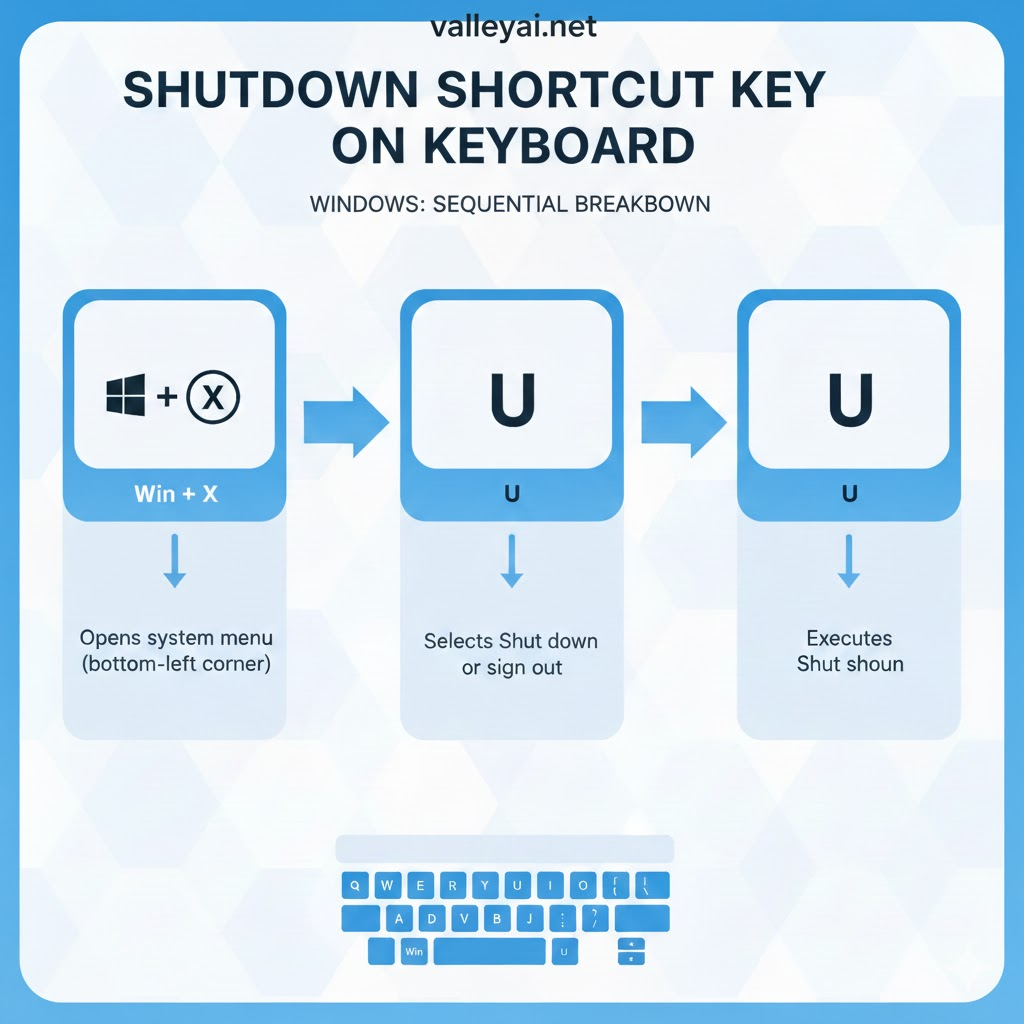
The Sequence Breakdown:
Win + X: Opens the system menu in the bottom-left corner.U: Selects Shut down or sign out.U: Executes Shut down.
Variation for Restarting:
If you need to reboot instead of shut down, the muscle memory is nearly identical: Win + X, then U, then R. Once you memorize this rhythm, it is significantly faster than navigating the Start menu with a mouse.
How to Create a True One-Second Shortcut
Windows does not have a native, single-press hotkey (like Ctrl+Alt+S) that instantly shuts down the PC. However, you can build one in about 30 seconds using a desktop shortcut and a system argument. This is the only way to achieve a true “one-button” shutdown.
Step 1: Create the Shortcut
- Right-click on an empty space on your desktop.
- Select New > Shortcut.
- In the location field, paste this command:
shutdown.exe /s /t 00/stells the computer to shut down./t 00sets the timer to zero seconds (instant). If you want a grace period to cancel accidental presses, change00to05.
Step 2: Assign the Hotkey
- Name the shortcut “Instant Shutdown” and click Finish.
- Right-click your new icon and select Properties.
- Click inside the Shortcut key field.
- Press the key combination you want to use (e.g.,
Ctrl+Alt+EndorCtrl+Alt+S). - Click Apply.
Now, whenever you press that combination, Windows will immediately initiate the shutdown sequence without prompts or menus.
The Risks of Using Alt + F4
Most general advice suggests using Alt + F4 to shut down. While valid, this is technically a close window command, not a system shutdown command.
If you have a browser, a Word document, and Spotify open, pressing Alt + F4 will simply close the program you are currently looking at according to common Windows usage guides. You would have to spam the key combination repeatedly until all applications are closed before the “Shut Down Windows” dialog box finally appears.
A 2018 study by Statista found that Alt+F4 is used for closing windows 85% of the time, versus initiating a shutdown.
The Correct Workflow for Alt + F4:
To use this method effectively, you must first ensure the Desktop is the active window.
- Press
Win + D(This minimizes all windows and focuses the desktop). - Press
Alt + F4. - Press
Enter.
If you skip the first step, you risk accidentally closing unsaved work in an active window rather than shutting down the PC.
macOS Specifics: Sleep vs. Shutdown
Mac users generally prefer “Sleep” over “Shutdown,” but when a full power-cycle is necessary, the distinction lies in whether you want a confirmation dialog or an instant kill.
- The Safe Route (
Ctrl+Power): This brings up the standard dialog box asking if you want to restart, sleep, or shut down. It allows you to save documents before proceeding. - The Fast Route (
Ctrl+Option+Command+Power): This bypasses the dialog box and attempts to quit all apps and shut down immediately.- Note: If an app has open documents with unsaved changes, macOS will usually pause the shutdown and bounce the app icon in the dock, asking you to save. It is not a “hard” kill, but it is the fastest software-based method available.
Emergency Shutdown (When Shortcuts Fail)
If your screen is frozen, the mouse cursor won’t move, and the keyboard commands above yield no response, the operating system has likely stopped processing input interrupts. In this state, no software shortcut will work.
You must perform a Hard Shutdown:
- Locate the physical power button on your PC case or laptop.
- Press and hold it down for a full 5 to 10 seconds.
- The screen will turn black instantly.
Warning: This cuts power to the hardware immediately. While modern file systems (like NTFS and APFS) are resilient, this carries a risk of data corruption for any files that were being written to the drive at that exact moment. Use this only as a last resort.
Related Workflow Optimizations
Once you have mastered the shutdown shortcut, you may find these related keyboard commands useful for managing your session state:
- Lock Screen (
Win+L): If you are stepping away but want to keep your programs running, this is the correct command. It secures the machine instantly. - Hibernate Command: If you want to shut down but keep your open windows for later, use the
Win + X>U>Hsequence (requires Hibernation to be enabled in Control Panel). - Abort Shutdown: If you accidentally trigger a shutdown with a timer (e.g., you set your custom shortcut to 10 seconds), you can cancel it by opening the Run dialog (
Win + R) and typingshutdown /a.
FAQs Related to Computer/Laptop Shutdown Shortcut Key
What is the shortcut key for shutdown?
According to Microsoft’s support pages, the Win + X sequence is a standard method for IT professionals and power users to shut down Windows machines.
How to Shutdown Laptop/ PC using shortcut keys on Windows?
Press Win + D (This minimizes all windows and focuses the desktop).
Press Alt + F4.
Press Enter.

Kaleem
My name is Kaleem and i am a computer science graduate with 5+ years of experience in Computer science, AI, tech, and web innovation. I founded ValleyAI.net to simplify AI, internet, and computer topics also focus on building useful utility tools. My clear, hands-on content is trusted by 5K+ monthly readers worldwide.