
Every time your phone joins your home Wi-Fi, it receives an IP address, a subnet mask, a gateway, and DNS settings in a fraction of a second, without you typing a single number. The service behind that quiet magic is DHCP, the Dynamic Host Configuration Protocol. It is the network’s automatic welcome desk: every new device walks up, asks for a place on the network, and gets handed everything it needs to communicate.
Without DHCP, someone would have to configure each device by hand, one typo could knock two devices offline, and a house full of smart gadgets would be a weekend project instead of a plug-and-play reality. This guide explains what DHCP is, how the four-step DORA handshake works, what exactly the server hands out, how leases keep you online, and what to do when the whole thing breaks down.
What DHCP Is and Why Your Network Needs It
DHCP, short for Dynamic Host Configuration Protocol, is a client-server protocol that automatically assigns IP addresses and related network settings to devices as they join a network. The standard is defined by the IETF in RFC 2131, and it runs over UDP on ports 67 (server) and 68 (client). That is the formal version. The practical version is simpler: DHCP is the reason you never have to think about IP addresses on your own network.
Every device that wants to talk on a network needs an IP address. If you have ever wondered what those dotted numbers actually mean, our guide on what an IP address is covers it in depth. DHCP is the delivery mechanism for those addresses. The DHCP server keeps a pool of available addresses and lends them out on request, while the DHCP client is simply any device asking for one: your laptop, your phone, your smart TV, even your video doorbell.
Before DHCP became the norm, network administrators assigned every address manually. On a network of ten computers that was tedious. On a modern home network with thirty connected gadgets, it would be a full-time job, and one duplicated address would silence two devices at once. DHCP removed that burden entirely: addresses are handed out automatically, tracked centrally, and recycled when devices leave.
The DORA Handshake: How a Device Gets Its Address
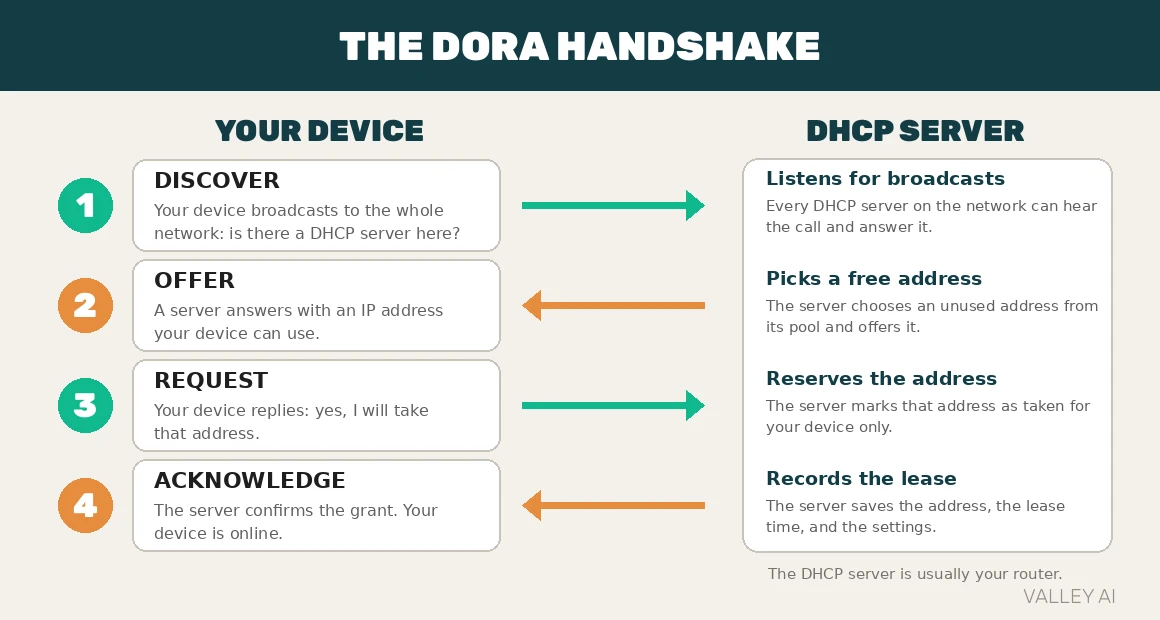
DHCP assigns an address through a four-step conversation with a memorable name: DORA. It happens in milliseconds, every single time a device connects, wakes from sleep, or returns to a network it has visited before. Here is each step:
- Discover. The device has no IP address yet, so it cannot send a normal message to a specific server. Instead it shouts to the whole local network with a broadcast packet addressed to 255.255.255.255, essentially asking: is there a DHCP server here?
- Offer. A DHCP server hears the shout and replies with an offer: here is an IP address you can use, plus the subnet mask, gateway, DNS servers, and how long you may keep it.
- Request. The device broadcasts its choice back, formally requesting the offered address. If it has visited this network before, it may ask for the address it used last time.
- Acknowledge. The server confirms with an acknowledgment packet. The device applies the settings to its network interface and is online.
If more than one server answers the discover message, the client simply picks one offer and requests it, ignoring the rest. And if you are the curious type, you can watch this entire conversation happen live: a packet sniffer like Wireshark will show you the Discover, Offer, Request, and Acknowledge packets flying past the moment you reconnect your Wi-Fi.
Everything the Server Hands Out
An IP address gets all the attention, but it is only one item in the bundle. Every DHCP acknowledgment carries a complete starter kit for network life:
- IP address. The device’s own identity on the local network, drawn from the server’s pool. A typical home pool looks like 192.168.1.100 through 192.168.1.200.
- Subnet mask. Tells the device which part of its IP address identifies the local network and which part identifies the device itself, usually 255.255.255.0 at home.
- Default gateway. The address of the router that leads out to the internet, almost always the router’s own address, something like 192.168.1.1.
- DNS servers. The addresses the device should ask when it needs to turn a domain name into an IP address. Your router usually passes along your ISP’s DNS servers, though you can change them. If you want the full story of what DNS does with this information, see our guide to DNS.
- Lease duration. How long the device may keep this address before it must check back in. The classic home default is 24 hours.
The exact set of parameters is defined by the IANA DHCP option registry, which lists hundreds of possible options, from the time server address to the name of the boot file a thin client should load. Home networks use a handful; corporate networks use far more.
Lease Time and Renewal: Why You Stay Online for Years Without Noticing
A DHCP address is a loan, not a gift. That is what makes the whole system work at scale: when your phone leaves the network, its address eventually returns to the pool for someone else. The loan period is the lease, and managing it is the quietest part of DHCP.
Halfway through the lease, at a point the protocol calls T1, your device automatically asks the server to renew. If the server answers, the lease is extended and nothing changes; your address stays the same for another full term. This is why your laptop can keep the same 192.168.1.x address for months even though every lease technically expires. If the server is unreachable at the halfway mark, the device waits until 87.5 percent of the lease has passed (T2) and then broadcasts a renewal request to any DHCP server that will listen.
The server also remembers which address each device had, identified by its MAC address, the hardware identifier burned into every network adapter. When your phone returns the next morning, the server usually hands back the same IP it had yesterday, because there is no reason to shuffle addresses that are not in demand.
You can trigger the renewal cycle manually. On Windows, opening a terminal and running ipconfig /release followed by ipconfig /renew drops your current lease and walks through DORA again from scratch. It is the network equivalent of hanging up and redialing, and it fixes a surprising number of mysterious connectivity problems.
Where Your DHCP Server Actually Lives
On a home network, the DHCP server is almost certainly the box blinking in the corner of the room: your router. When your internet provider installed your connection, two layers of DHCP started running. First, your provider’s equipment assigns your router a public IP address over the WAN connection, using DHCP from the ISP’s side. Then your router runs its own DHCP server for your home, handing private addresses like 192.168.1.x to everything inside.
That box does more than you might think. If you have ever wondered what the difference between a router and a modem is, the DHCP server is one of the router’s defining jobs: the modem brings the internet to your door, and the router’s DHCP service organizes the network inside. In offices and enterprises, the DHCP server is usually a dedicated machine or a service running on the main network infrastructure, often with a backup server so a single failure cannot strand every device.
You can look at your own DHCP server’s settings right now. Log in to your router’s admin page (usually at 192.168.1.1 or 192.168.0.1), find the LAN or DHCP section, and you will see the address pool range, the lease time, and often a list of every device currently holding a lease with its MAC address and hostname. Many routers also let you create reservations: pinning a specific IP to a specific device by its MAC address, which is the tidy way to give your printer or home server an address that never moves.
How to See Your Own DHCP Lease
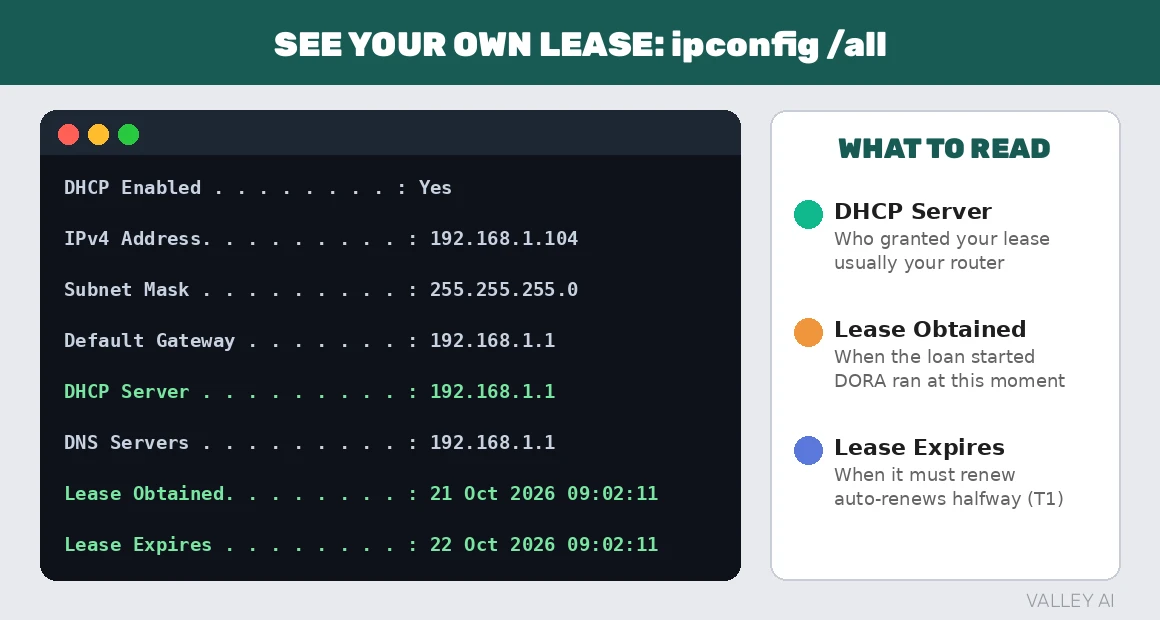
The fastest way to make DHCP concrete is to look at your own lease. On Windows, open a terminal (press Windows key, type cmd, hit Enter) and run:
ipconfig /all
In the output, find your active network adapter and look for these lines. Each one maps directly to something this article has explained:
- DHCP Enabled: Yes. Confirms this adapter gets its settings from DHCP rather than a manual static configuration.
- IPv4 Address. The address your server handed you from its pool.
- Subnet Mask and Default Gateway. The two companions that arrived in the same DHCP bundle.
- DHCP Server. The IP address of the machine that granted your lease, usually your router.
- Lease Obtained and Lease Expires. The timestamps of your current loan, showing the 24-hour cycle in action. Compare the two and you will see the T1 halfway point where your device will quietly renew.
On a Mac, the same information lives under System Settings, then Wi-Fi, then Details next to your network, in the TCP/IP tab. On Linux, ip addr shows your address and most distributions log the full DHCP exchange in the system journal. Once you have seen your own lease, DHCP stops being an abstract protocol and becomes a receipt you can read.
DHCP vs Static IP: When Each One Wins
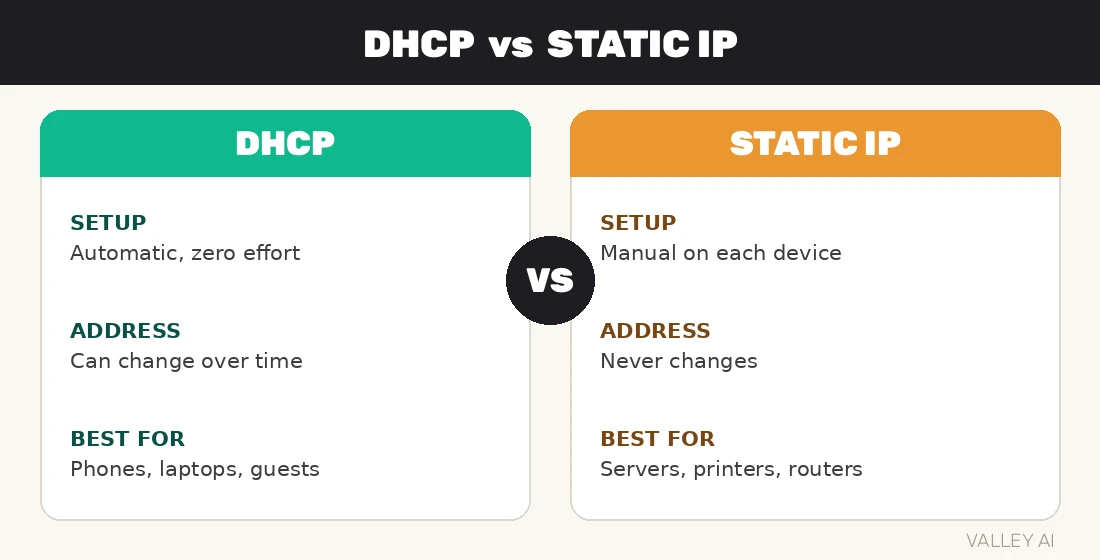
DHCP is the default for a reason, but it is not the only way to assign addresses. A static IP is an address typed in by hand that never changes unless someone changes it. Each approach has a natural home:
| DHCP | Static IP | |
| Setup effort | Zero, fully automatic | Manual on every device |
| Address stability | Can change after long absences | Never changes |
| Conflict risk | Near zero, server tracks everything | Real, if two people pick the same number |
| Best for | Phones, laptops, guests, smart home gadgets, anything that moves | Servers, printers, security cameras, the router itself |
The practical rule is simple: let DHCP handle everything that roams, and give a static address (or better, a DHCP reservation in your router) to anything other devices need to find reliably. Your printer does not care about convenience, but your laptop does care about finding the printer at the same address every time.
When DHCP Fails: The 169.254 Clue
Sometimes the welcome desk is closed. If your device shouts its Discover message and no DHCP server answers, it does not simply give up. Windows assigns itself an address in the special 169.254.x.x range, a behavior called APIPA (Automatic Private IP Addressing). Other operating systems do the equivalent.
That address is a distress signal, not a working configuration. A 169.254.x.x address means your device could not reach any DHCP server, so it has no gateway and no DNS: it can talk to other stranded devices on the same wire, but the internet is unreachable. If you see one in your ipconfig output, you now know exactly what it means and where to look:
- Check whether your router is powered on and the cable or Wi-Fi link is actually up.
- Restart the router, which restarts its DHCP service too.
- On the device, run
ipconfig /releasethenipconfig /renewto retry the handshake cleanly. - If the address pool is exhausted (too many devices, too few addresses), widen the pool in the router’s DHCP settings.
This is also the machinery behind the oldest advice in tech support. When disconnecting and reconnecting fixes a dead connection, what usually happened is that the first DHCP exchange went wrong and the second one succeeded. It was never magic. It was DORA getting a second chance.
A Quick Word on Rogue DHCP Servers
DHCP was designed in a trusting era: clients accept offers from whichever server answers first, with no authentication. That creates an opening for a rogue DHCP server, an unauthorized device on the network that answers Discover messages with malicious settings, most dangerously a fake gateway or DNS server that funnels traffic through the attacker.
On a home network this is rare, and a strong Wi-Fi password keeps strangers off the network in the first place. In offices, administrators counter it with DHCP snooping, a switch feature that only allows DHCP offers from trusted ports, dropping any offer that arrives from anywhere else. For most readers the takeaway is awareness rather than action: now you know why that first answer matters, and why networks take care about who is allowed to give it.
Frequently Asked Questions
What is DHCP in simple terms?
DHCP (Dynamic Host Configuration Protocol) is the service that automatically gives your device an IP address and network settings every time it joins a network. At home, your router acts as the DHCP server, so your phone and laptop get online with zero manual setup.
How long does the DHCP process take?
The four-step DORA handshake (Discover, Offer, Request, Acknowledge) completes in a fraction of a second. It runs every time a device connects to a network, wakes from sleep, or renews its address lease.
Can two devices get the same IP address from DHCP?
No. The DHCP server tracks every active lease and never hands out an address that is already loaned. Duplicate addresses usually come from manual static IP mistakes or, rarely, a rogue DHCP server on the network.
What is the difference between DHCP and DNS?
DHCP gives your device its network configuration, including which DNS server to use. DNS then uses that setup to translate domain names like example.com into IP addresses. DHCP is the delivery service; DNS is the phone book.
Is DHCP safe to use?
For home networks, yes. DHCP itself has no built-in authentication, so a rogue server on the same network could hand out malicious settings, but a strong Wi-Fi password keeps attackers off your network. Offices add DHCP snooping on their switches as an extra layer.
Should I turn off DHCP on my router?
Almost certainly not. Disabling DHCP means configuring every device by hand, which is tedious and error prone. Leave DHCP on and use address reservations in your router settings for devices like printers that need a stable address.

Kaleem
Kaleem is a Computer Science graduate (Virtual University of Pakistan) and the founder and editor of Valley AI, where he publishes in-depth, tested guides on computer hardware, artificial intelligence, and how the internet works. Every guide is researched from primary sources, tested hands-on where possible, and updated when the facts change.