
Every time you visit a website, send an email, or stream a video, you are using the Domain Name System (DNS). It is the invisible infrastructure that makes the internet usable for humans. Without it, we would all be forced to memorize complex strings of random numbers just to check the news.
Despite its importance, few internet users understand how DNS works, and even fewer know that changing their DNS settings can actually speed up their browsing and improve their privacy.
This comprehensive guide goes beyond the basic definitions. We will explore the technical mechanics of the DNS lookup process, explain the difference between recursive and authoritative servers, and provide a step-by-step guide on how to optimize your own connection.
What is DNS in Simple Words?
If the internet had a physical front desk, the DNS would be the receptionist.
Computers and servers identify each other using unique strings of numbers called IP Addresses (e.g., 192.0.2.1 or 2400:cb00:2048:1::6814). However, humans are terrible at memorizing random numbers; we prefer names like google.com or nytimes.com.
DNS (Domain Name System) is the phonebook of the internet. It translates human-readable domain names (like example.com) into machine-readable IP addresses (like 93.184.216.34). This translation process allows browsers to locate and load internet resources without users needing to memorize numerical server coordinates.
Why DNS Matters
- Usability: It bridges the gap between human language and machine code.
- Efficiency: It distributes internet traffic across global server networks.
- Portability: It allows website owners to change their hosting server (IP address) without changing their domain name.
How DNS Works: The 4 Key Players
When you type a URL into your address bar, a complex chain reaction occurs behind the scenes. This generally happens in milliseconds. To understand this, we must identify the four distinct types of servers involved in a standard DNS query.
1. The Recursive Resolver (The Librarian)
Think of the Recursive Resolver as a helpful librarian. When you request a website, your computer asks this server to go find the specific IP address. It doesn’t usually have the answer itself immediately, but it knows exactly where to look. This is often provided by your Internet Service Provider (ISP), but you can choose third-party providers like Google or Cloudflare.
2. The Root Nameserver (The Index)
This is the first stop for the Recursive Resolver. The Root Server doesn’t know the specific IP address of the website, but it knows where to find the TLD (Top-Level Domain) servers. There are 13 logical root server addresses worldwide, managed by organizations like ICANN, NASA, and the US Army.
3. The TLD Nameserver (The Section Manager)
The Top-Level Domain (TLD) server manages the extensions of domain names, such as .com, .org, or .net. If you are looking for google.com, the Root Server points the Resolver to the .com TLD server.
4. The Authoritative Nameserver (The Source of Truth)
This is the final destination. The Authoritative Nameserver holds the actual DNS records for the specific domain you are trying to reach. It provides the Recursive Resolver with the final IP address, which is then sent back to your computer so the website can load.
The 8 Steps of a DNS Lookup
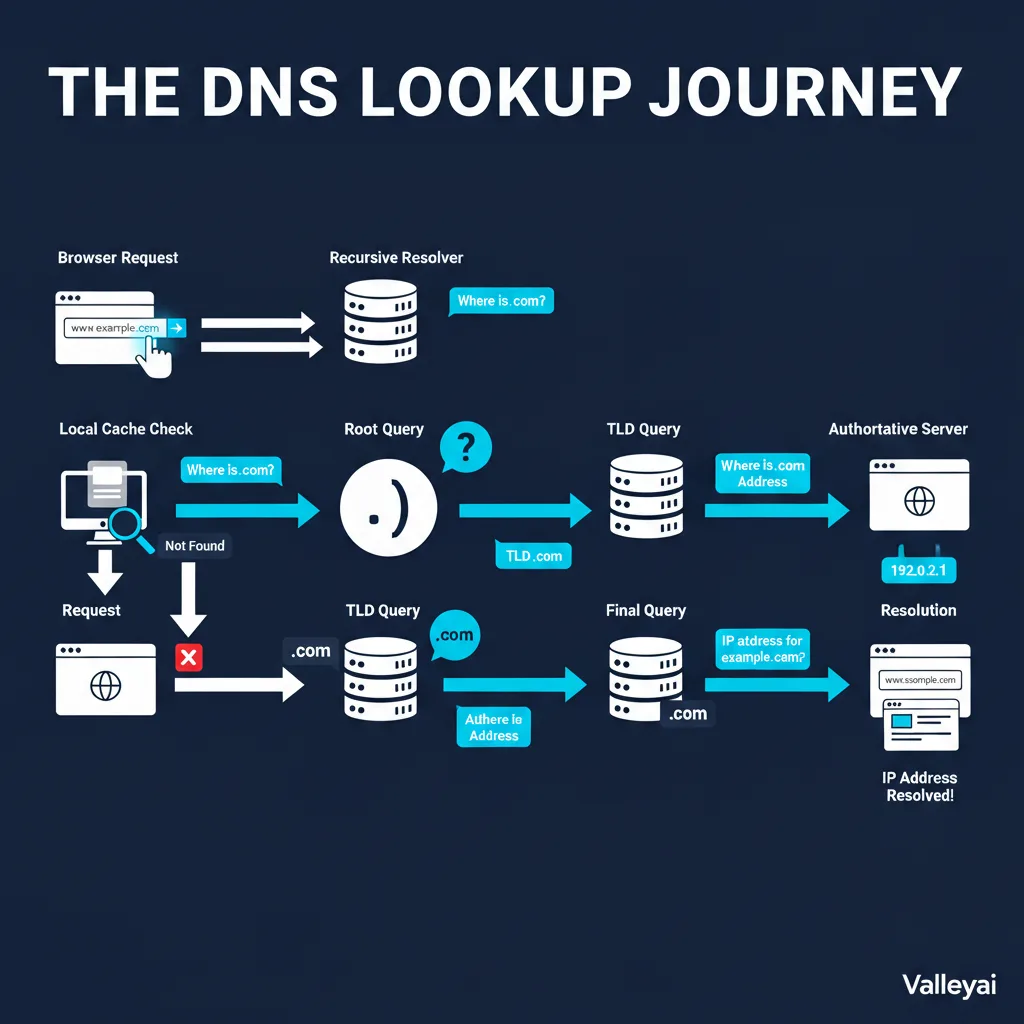
To visualize the journey of a DNS query, let’s break down exactly what happens when you visit www.example.com:
- Request: You type
example.cominto your browser. - Local Cache Check: Your operating system checks its local cache to see if it remembers the IP address from a recent visit. If not, it queries the Recursive Resolver.
- Root Query: The Recursive Resolver asks the Root Nameserver, “Where is
.com?” - Root Response: The Root Server replies with the address of the
.comTLD server. - TLD Query: The Resolver asks the
.comTLD server, “Where isexample.com?” - TLD Response: The TLD server replies with the IP address of the domain’s Authoritative Nameserver.
- Final Query: The Resolver asks the Authoritative Nameserver, “What is the IP address for
example.com?” - Resolution: The Authoritative Server provides the IP address. The Resolver sends this to your browser, and the page loads.
Note: The Recursive Resolver will usually cache this information for a set period (defined by the TTL or “Time to Live”) so it doesn’t have to repeat steps 3–7 for the next user.
Understanding DNS Record Types
The Authoritative Nameserver doesn’t just hold one IP address; it holds a database of “records.” Here are the most common ones you should know:
- A Record (Address Record): The most fundamental record. It maps a domain to an IPv4 address.
- AAAA Record: Maps a domain to an IPv6 address (the modern, longer IP format).
- CNAME (Canonical Name): Forwards one domain alias to another domain (e.g.,
blog.example.com->example.com). - MX Record (Mail Exchange): Directs emails to the correct mail server. Without this, you cannot receive email.
- TXT Record: Allows admins to insert text into the DNS. This is heavily used for email security (SPF/DKIM) and verifying domain ownership.
- NS Record: Indicates which Name Server is authoritative for the domain.
What is DNS Propagation?
If you have ever launched a website or changed web hosts, you may have heard of DNS Propagation.
Because DNS information is cached (stored temporarily) at various levels browser, OS, ISP, and Recursive Resolvers changes you make to your DNS records are not instant.
Propagation is the time it takes for these caches to expire and update with your new information. This can take anywhere from a few minutes to 48 hours, depending on the TTL (Time to Live) settings assigned to your records.
How to Change DNS Settings (And Why You Should)
Most users default to the DNS servers provided by their ISP. However, ISP DNS servers are often slow, unreliable, and may log your browsing history to sell to advertisers.
Switching to a third-party provider is one of the easiest ways to improve internet speed and privacy.
Google DNS vs. Cloudflare DNS: Which is Better?
| Feature | Google Public DNS | Cloudflare DNS |
|---|---|---|
| Primary IP | 8.8.8.8 | 1.1.1.1 |
| Secondary IP | 8.8.4.4 | 1.0.0.1 |
| Focus | Reliability & Accuracy | Speed & Privacy |
| Privacy Policy | Deletes logs after 48 hours | Claims to never log IP addresses |
Actionable Guide: Changing Your DNS
On Windows 10/11
- Open Settings > Network & Internet.
- Click on Wi-Fi (or Ethernet) > Hardware properties.
- Click Edit next to “DNS server assignment.”
- Select Manual, toggle on IPv4.
- Enter your preferred DNS (e.g.,
1.1.1.1in Preferred and1.0.0.1in Alternate). - Click Save.
On macOS
- Go to System Settings > Network.
- Select your active network and click Details.
- Click the DNS tab.
- Click the + button and add
8.8.8.8(or your choice). - Click OK > Apply.
On Mobile (iPhone/iOS)
- Go to Settings > Wi-Fi.
- Tap the blue “i” icon next to your connected network.
- Scroll to Configure DNS and change it from Automatic to Manual.
- Add Server
1.1.1.1.
Modern DNS Privacy: What is DNS-over-HTTPS (DoH)?
Traditional DNS queries are sent in plain text. This means anyone looking at the network traffic like your ISP, a hacker on public Wi-Fi, or government censors can see exactly which websites you are visiting, even if the website itself uses HTTPS.
DNS-over-HTTPS (DoH) solves this by encrypting the DNS query. It disguises the DNS request as normal HTTPS web traffic.
- Benefit: ISPs cannot easily track your browsing history.
- Benefit: Prevents Man-in-the-Middle attacks where hackers redirect you to fake banking sites.
Most modern browsers (Chrome, Firefox, Edge) now support DoH, and using a provider like Cloudflare (1.1.1.1) enables this security layer automatically.
Troubleshooting: Why is my DNS Server Not Responding?
If you lose internet access and see a “DNS Server Not Responding” error, it means your computer cannot contact the phonebook to translate URLs. Here is how to fix it:
- Restart Your Router: This clears the router’s local DNS cache and establishes a fresh connection.
- Flush DNS Cache: Sometimes your computer holds onto corrupted data.
- Windows Command: Open Command Prompt and type
ipconfig /flushdns. - Mac Command: Open Terminal and type
sudo dscacheutil -flushcache; sudo killall -HUP mDNSResponder.
- Windows Command: Open Command Prompt and type
- Switch DNS Providers: If your ISP DNS is down, switch to Google (
8.8.8.8) using the guide above. - Disable VPNs: An active VPN connection can sometimes conflict with network DNS settings.
Common DNS Problems
Sometimes, this system can run into issues. You might have seen errors like DNS_PROBE_FINISHED_NXDOMAIN or This site can’t be reached. This often means the DNS lookup failed at some point. The phonebook couldn’t find a listing for the domain you requested. This can be caused by a typo, a problem with the website itself, or an issue with your own computer DNS cache.
Conclusion
The Domain Name System is a brilliant, invisible engine that makes the internet easy for everyone to use. It works silently in the background, translating the words we remember into the numbers computers need. The next time you visit a website, you’ll know that a complex but lightning-fast delivery service is working behind the scenes to connect you.
Frequently Asked Questions (FAQ):
What is DNS and why do we need it?
What is DNS hierarchy and how is it organized?
DNS uses a hierarchical, distributed design: root servers at the top, TLD servers below (like .com, .org), and authoritative name servers for each domain. This structure ensures global scalability and reliable domain name resolution.
What potential risks are associated with DNS and how can they be mitigated?
Risks include DNS cache poisoning, spoofing, and malicious DNS record changes. Solutions include using secure DNS protocols (like DNSSEC), choosing trusted DNS resolvers, and regularly auditing DNS settings.
Is my DNS the same as my IP address?
No, they are two different but related things. Your IP address is the unique network address for your specific device (like your computer or phone). DNS is the system that finds the IP addresses for the websites you want to visit. Think of it this way: your IP address is your home address, while DNS is the GPS service you use to find the home addresses of your friends.
Is it safe to change my DNS server?
Yes, absolutely. Changing your DNS server is safe and reversible. In fact, switching to a reputable provider like Cloudflare or Google is often safer than using your ISP’s default server, as they offer better protection against phishing attacks and do not monetize your data.
Does changing DNS improve internet speed?
It can improve browsing responsiveness, but it won’t increase your download bandwidth. A faster DNS server reduces the split-second delay between clicking a link and the page starting to load (latency).
Can I hide my browsing history by changing DNS?
Changing your DNS prevents your ISP from logging your DNS lookups (if you use a private provider), but it does not make you anonymous. Your ISP can still see the IP addresses you connect to. for full anonymity, a VPN is required.
What is a Dynamic DNS (DDNS)?
Most home internet connections have a dynamic IP address that changes occasionally. Dynamic DNS is a service that automatically updates your domain name records when your home IP changes, allowing you to access home servers or cameras remotely without needing to know the new IP.

Kaleem
My name is Kaleem and i am a computer science graduate with 5+ years of experience in Computer science, AI, tech, and web innovation. I founded ValleyAI.net to simplify AI, internet, and computer topics also focus on building useful utility tools. My clear, hands-on content is trusted by 5K+ monthly readers worldwide.