
![How to Flush DNS Cache: The Definitive Guide [Windows, Mac, Linux & Mobile]](https://valleyai.net/wp-content/uploads/2026/01/How-to-Flush-DNS-Cache.png)
If a website fails to load, you’re seeing outdated content, or you’ve recently migrated a server, your computer is likely holding onto old location data. This is a DNS Cache issue.
While most guides simply list commands, modern networking is complex. Your Operating System (Windows/Mac/Linux) has a cache, but so does your browser (Chrome/Firefox) and your router. If you flush one but not the others, the problem persists.
This guide covers the full stack: OS-level commands, Linux service distinctions (systemd vs. dnsmasq), browser-internal flushing, and mobile troubleshooting.
Learn the difference also: System DNS vs Chrome DNS Cache
1. What is DNS Cache and Why Clear It?
The Domain Name System (DNS) is the internet’s phonebook. When you visit google.com, your computer asks a DNS Resolver for the IP address (e.g., 142.250.190.46). To save time, your device saves (caches) this answer locally.
Why Flush?
- Fix 404 Errors: If a website moves to a new server, your cache might still point to the old IP.
- Security: Remove potential DNS spoofing records where hackers redirect traffic.
- Privacy: Erase a localized history of visited domains.
The Technical Reality: Every DNS record has a TTL (Time to Live). Even if you flush your cache, you might still see old data if your ISP or Router is holding onto the record until the TTL expires.
2. Windows: Command Prompt & PowerShell Guide
Windows handles DNS caching via the DNS Client service. Whether you are on Windows 10, Windows 11, or Server editions, the command logic remains consistent.
Method A: Command Prompt (The Standard Way)
- Press
Win + Sand search for cmd. - Crucial: Right-click “Command Prompt” and select Run as Administrator.
- Type the following command and press Enter:
ipconfig /flushdnsSuccess Message:
You should see: “Successfully flushed the DNS Resolver Cache.”
![How to Flush DNS Cache: The Definitive Guide [Windows, Mac, Linux & Mobile]](https://valleyai.net/wp-content/uploads/2026/01/image.png)
Method B: PowerShell (For Power Users)
If you are scripting or prefer PowerShell:
- Right-click the Start button and select Windows Terminal (Admin) or PowerShell (Admin).
- Run this cmdlet:
Clear-DnsClientCacheValidation: Did it work?
To ensure the cache is gone, you can view the current cache before and after flushing:
ipconfig /displaydnsIf the list is empty or significantly shorter, the flush was successful.
3. macOS: Commands by Version
Apple frequently updates how the mDNSResponder handles caching. Using the wrong command on a newer OS version often results in no action.
macOS Sonoma, Ventura, Monterey, & Big Sur (11.0+)
- Open Terminal (Cmd + Space, type “Terminal”).
- Copy and paste the following command:
sudo dscacheutil -flushcache; sudo killall -HUP mDNSResponder- Enter your Mac’s login password when prompted.
- Note: Terminal will not show characters as you type the password. This is a security feature. Press Enter blindly.
Legacy macOS (Catalina, Mojave, High Sierra)
For older Macs, the command syntax differs slightly:
sudo killall -HUP mDNSResponderPro Tip: You typically won’t see a “Success” message on macOS. To hear a confirmation audio cue, add
; say cache flushedto the end of the command.
4. Linux: Distinguishing Services (Not Just Distros)
Unlike Windows or Mac, Linux DNS flushing depends on the network manager service you are running, not just your OS version (Ubuntu/Fedora/Arch).
Scenario A: systemd-resolved (Modern Standard)
Used by Ubuntu 22.04+, Debian 12, and Fedora.
- Check if you are using systemd-resolved:
bash systemctl is-active systemd-resolved - If active, run:
bash sudo resolvectl flush-caches - Verify:
bash resolvectl statistics
Look for “Current Cache Size: 0”.
Scenario B: nscd (Name Service Cache Daemon)
Common in Arch Linux or older RedHat systems.
sudo service nscd restart
# OR
sudo /etc/init.d/nscd restart
Scenario C: dnsmasq
Common in lightweight distros and server setups.
sudo systemctl restart dnsmasq5. Alternative Methods: Browser-Level DNS (Chrome & Firefox)
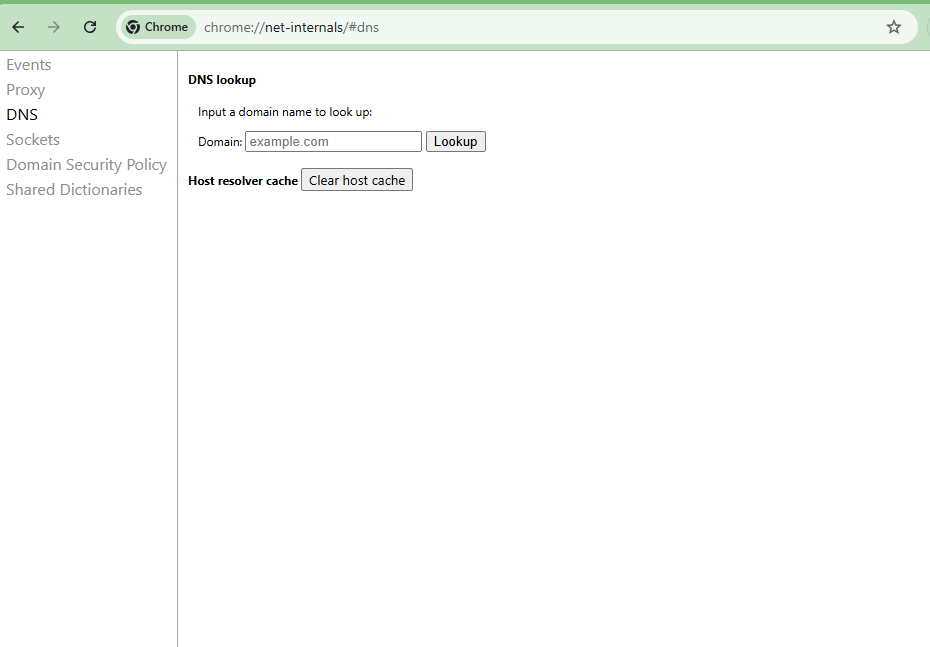
This is the most common reason flushing fails. Modern browsers use “Secure DNS” (DNS-over-HTTPS), effectively bypassing your OS cache. You must clear the browser’s internal resolver.
Google Chrome / Microsoft Edge / Brave
These Chromium-based browsers share a similar net-internals structure.
- Open a new tab and type:
chrome://net-internals/#dns
(Replacechromewithedgeorbraveas needed). - Click the button labeled Clear host cache.
Mozilla Firefox
Firefox maintains its own memory cache independent of the OS.
- In the address bar, type:
about:networking#dns - Click the Clear DNS Cache button.
6. Mobile Devices: Android & iOS
Mobile OSs don’t provide a direct “Flush DNS” button, but you can force a refresh.
iOS (iPhone/iPad)
- Airplane Mode: Toggle Airplane Mode ON for 15 seconds, then OFF. This forces the radio to release network tables.
- Hard Reset (Nuclear Option): Go to Settings > General > Transfer or Reset iPhone > Reset > Reset Network Settings.
- Warning: This forgets all Wi-Fi passwords.
Android
- Chrome Flush: Use the
chrome://net-internals/#dnsmethod mentioned in Section 5 (works on mobile Chrome). - Wi-Fi Toggle: Forget the Wi-Fi network and reconnect. Long press Wi-Fi icon > Tap the network > Forget. Re-enter password to connect.
7. Technical Validation & Troubleshooting
You ran the commands, but the site still won’t load? Here is the engineer’s checklist for deeper issues.
1. The Hosts File Check
Malware or old development settings might be hard-coding a domain to an IP.
- Windows: check
C:\Windows\System32\drivers\etc\hosts - Mac/Linux: check
/etc/hosts - Ensure there are no lines mapping the problem domain to
127.0.0.1or an old IP.
2. Router DNS Cache
Your router (Asus, Netgear, Linksys) caches DNS to speed up surfing for the whole house.
- Fix: Unplug your router power cable. Wait 30 seconds. Plug it back in. This clears the volatile memory.
3. Change DNS Resolver
If your ISP’s DNS is broken or caching aggressively, switch to a public provider.
- Google DNS:
8.8.8.8/8.8.4.4 - Cloudflare DNS:
1.1.1.1
4. Verification with Dig/Nslookup
Don’t guess verify. Use the command line to ask exactly where the domain points right now.
nslookup example.com 8.8.8.8This command forces a lookup against Google (bypassing local cache) to see if the global record matches what you see in your browser.
Summary Checklist
| Component | Method | Difficulty |
|---|---|---|
| Windows OS | ipconfig /flushdns | Easy |
| macOS | sudo killall -HUP mDNSResponder | Medium |
| Linux | resolvectl flush-caches | Medium |
| Chrome Browser | chrome://net-internals/#dns | Easy |
| Router | Power Cycle (Reboot) | Easy |
Disclaimer: Modifying network settings requires administrative privileges. Always ensure you have backups of critical configurations before resetting network adapters.

Kaleem
My name is Kaleem and i am a computer science graduate with 5+ years of experience in Computer science, AI, tech, and web innovation. I founded ValleyAI.net to simplify AI, internet, and computer topics also focus on building useful utility tools. My clear, hands-on content is trusted by 5K+ monthly readers worldwide.