

If you have ever opened chrome://net-internals in Google Chrome, you may have noticed a small warning under the “Flush socket pools” button: “May break pages with active connections.” It is not an error, and nothing is wrong with your browser. Chrome is simply warning you that this button closes the network connections your open tabs are using, so a page that is loading right now can fail and need a reload. That is the entire story in one sentence. Here is what is actually happening under the hood, when the button is useful, and how to use it safely.
This article is a companion to our complete guide to chrome://net-internals, Chrome’s built-in network debugging toolkit.
What the Warning Actually Means
The sockets page of net-internals shows every network connection Chrome currently holds open. Next to it sit two buttons: “Close idle sockets” and “Flush socket pools.” Only the second one carries the warning, because the two buttons do very different things. “Close idle sockets” politely shuts down connections that are sitting unused. “Flush socket pools” tears down everything, including connections that pages are actively using to load content.
So the warning is Chrome being honest about a side effect. A tab that is halfway through downloading an image, a video chunk, or a page of search results can lose its connection mid-flight and show an error instead of the content. Nothing is damaged. Reloading the page opens fresh connections and everything works again. The warning exists so you are not surprised, not because the button is dangerous.
What Is a Socket Pool?
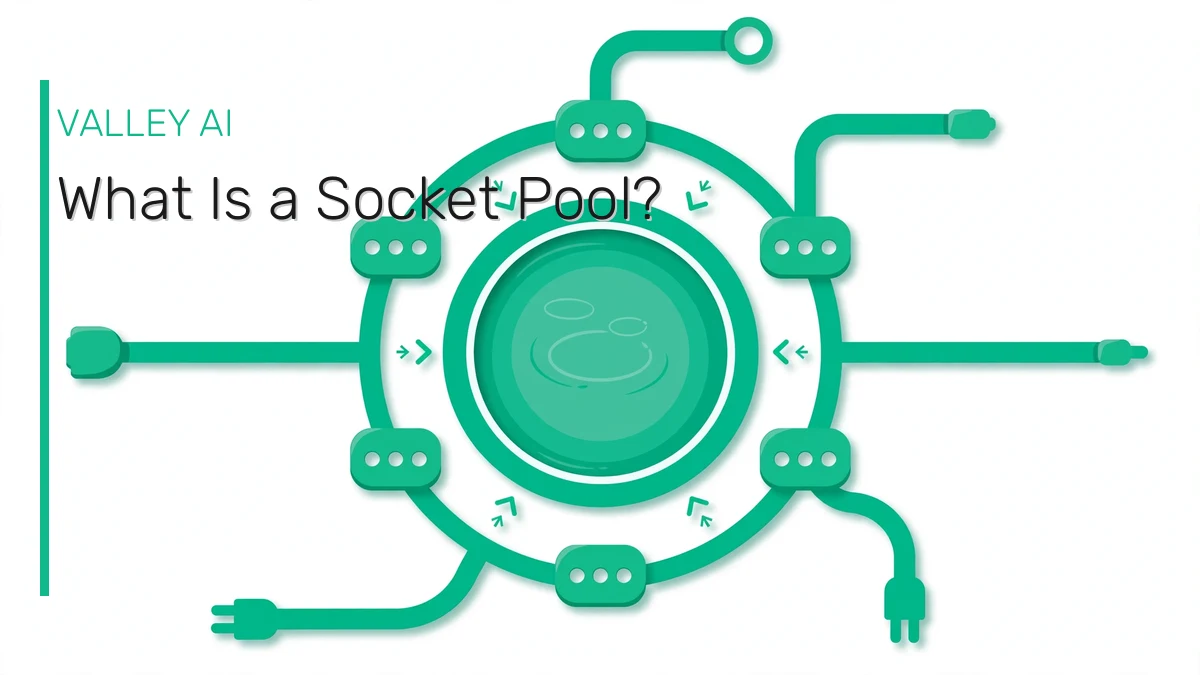
To understand the warning, you need to know why the pool exists. Opening a brand new network connection to a server is expensive: the browser and the server have to shake hands, agree on encryption, and warm up before a single byte of the page moves. Doing that for every single image, stylesheet, and script on a page would make browsing painfully slow. So Chrome keeps a pool of open connections to servers you use and reuses them for subsequent requests. This reuse is called keep-alive, and it is one of the quiet reasons modern browsing feels fast.
Newer protocols take the idea further. HTTP/2 multiplexes many requests and responses over a single connection at the same time, so one socket can carry a whole page worth of traffic in parallel. QUIC, the protocol behind HTTP/3, runs over UDP instead of TCP but follows the same pooling principle. The sockets page in net-internals lets you watch these pooled connections live, grouped by the server they talk to.
Think of the pool like a set of open phone lines to websites you visit often. Chrome keeps the lines open so it does not have to redial. Flushing the pool hangs up every line at once, including the calls still in progress.
Why Flushing Breaks Active Connections
When you click the button, Chrome closes every pooled socket immediately. Any request that was traveling over one of those sockets has nowhere to go, so the page it belonged to fails to load and you see an error or a half rendered page. Tabs that were idle, just sitting there with no loading in progress, are unaffected. This is exactly what the warning describes: pages with active connections may break.
Two things worth knowing soften the scare factor. First, recovery is trivial: reload the broken tab and Chrome opens fresh connections and loads the page normally. Second, flushing sockets does not touch your cookies, saved logins, or browsing history. Your sessions live in a separate store, so you stay logged in on virtually every site. If a guide tells you flushing sockets will log you out, that is wrong. The warning is about interrupted loads, not lost accounts.
When Flushing Socket Pools Actually Helps
The button is a troubleshooting tool, not a speed booster. It will not make Chrome faster, and clicking it on a healthy browser accomplishes nothing. It earns its place in exactly these situations:
- Stuck DNS or hosts file changes. Pooled connections are pinned to the IP address they were opened with. If a site changed servers or you edited your hosts file, the old connections keep reaching the old address. Flushing forces Chrome to resolve fresh. Pair it with clearing the DNS host cache, which our guide to flushing the DNS cache covers step by step.
- Connection errors after switching networks. Moving from Wi-Fi to a hotspot, or waking a laptop on a new network, can leave sockets pointing at a dead route. Errors like ERR_NETWORK_CHANGED and DNS_PROBE_FINISHED_NXDOMAIN sometimes persist until the stale sockets are gone.
- Web development and testing. Developers changing server configs need to be sure the browser is not reusing a connection to the old setup. Flushing guarantees the next request starts clean.
- A page that loads halfway and hangs. Occasionally a pooled connection goes stale without Chrome noticing. If one tab misbehaves while others work, flushing sockets is worth trying before the heavier resets in our guide to the most common Chrome errors.
How to Flush Socket Pools Safely
The procedure takes about thirty seconds. Do the gentler step first and save anything important in your tabs before you start, just as the warning suggests.
- Save your work. Finish anything in progress in your tabs, like a half written form or an upload. You will reload tabs afterward.
- Open the sockets page. Type chrome://net-internals/#sockets into the address bar and press Enter.
- Close idle sockets first. Click the Close idle sockets button. This shuts down only unused connections and carries no warning. Sometimes this alone fixes the problem.
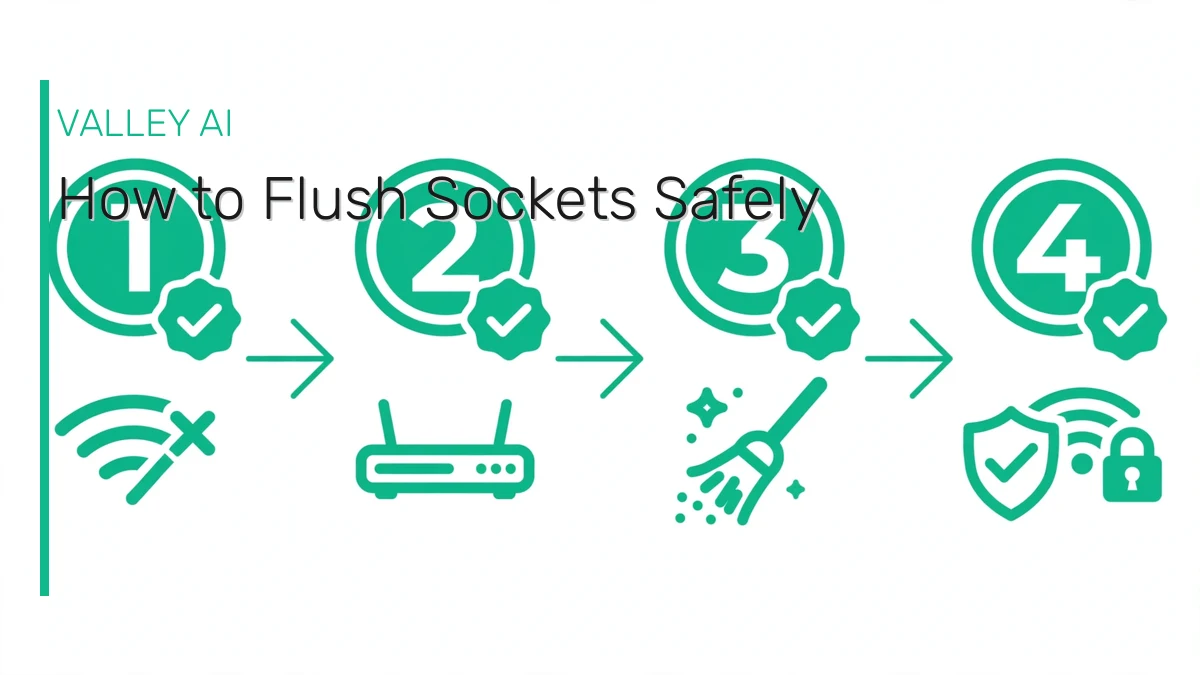
- Flush the socket pools. Click Flush socket pools, accepting the warning. Every pooled connection closes now.
- Clear the host cache too. Go to chrome://net-internals/#dns and click Clear host cache, so the fresh connections resolve current addresses. The order matters: sockets first, then DNS. You can read more about the browser side of DNS in our explainer on what the DNS cache is and how it differs across your system in system DNS vs Chrome DNS.
- Reload your tabs. Go back to any tab that looks broken and reload it. Chrome opens new connections and everything should load cleanly.
For a second walkthrough of the same two buttons from an independent source, see How-To Geek’s guide to clearing Chrome’s DNS cache and the University of Michigan’s DNS troubleshooting article, which both use this exact sequence.
Flush Socket Pools vs Clear Host Cache: What Is the Difference?
Guides often lump these two buttons together, but they clear completely different things. Mixing them up is why many people flush sockets expecting a DNS fix and see no change.
| Flush socket pools | Clear host cache | |
|---|---|---|
| What it clears | Open network connections (sockets) | Stored DNS answers (domain to IP mappings) |
| Where it lives | chrome://net-internals/#sockets | chrome://net-internals/#dns |
| Warning shown | May break pages with active connections | None |
| Fixes | Stale or stuck connections | Outdated DNS records |
| Affects logins | No | No |
The rule of thumb: connection problems get the sockets treatment, name resolution problems get the host cache treatment. When in doubt, do both in the order above, because a fresh socket that resolves a stale DNS entry just recreates the problem.
Frequently Asked Questions
Will flushing socket pools log me out of websites?
No. Flushing socket pools only closes network connections. Your cookies and session data live in a separate store that the button never touches, so you stay logged in on virtually every site. Some guides claim otherwise, but that is a myth.
Is it safe to click Flush socket pools?
Yes, it is safe. The worst that happens is a page that is currently loading fails and needs a reload. Save any in-progress work in your tabs first, click the button, then reload any broken tabs. Nothing is deleted and no settings change.
What is the difference between Close idle sockets and Flush socket pools?
Close idle sockets shuts down only connections that are sitting unused, which is gentle and carries no warning. Flush socket pools closes every pooled connection including ones pages are actively using, which is why only it shows the warning. Try the idle option first.
Chrome still will not load a site after I flushed sockets. What now?
The problem is probably DNS, not connections. Go to chrome://net-internals/#dns and click Clear host cache, then reload the tab. If that fails, the issue may be system level DNS, extensions, or the site itself, which our guide to common Chrome errors walks through.
Does flushing socket pools speed up Chrome?
No. Socket pools exist to make browsing faster by reusing connections, so flushing them cannot speed anything up. It is a troubleshooting step for stuck connections and stale DNS situations, not a performance trick. On a healthy browser it changes nothing.

Kaleem
Kaleem is a Computer Science graduate and the founder of Valley AI (valleyai.net), where he publishes in-depth, tested guides on computers, AI, and internet technologies. Every guide is researched from primary sources and updated regularly.