

You double-click a photo on your laptop. The file lives on a box across the room, yet it opens as if it sat on your own drive. A request leaves your laptop as a set of packets, crosses the switch, reaches the box, and returns carrying the photo.
That box is a NAS. Buy it for the network link behind it, and the drive count inside it comes second. A fast box on a slow link copies slowly. A slow box on a fast link copies slowly too. The link sets the ceiling, and the rest of the mechanism decides how close a copy gets to it.
Inside the Box: What a NAS Is Made Of
A NAS is a small computer with one job. It holds files and serves them to the network. Four parts do that job: drive bays with the drives inside them, a processor, memory, and a network port. A light operating system ties them together.
Bays set the shape of the box. A two-bay box holds two drives. A four-bay box holds four, and leaves room to add capacity later. Most home boxes take 3.5-inch hard drives. Some add M.2 slots for fast cache drives.
Processors and memory serve the requests. A basic ARM chip with 1 or 2 GB of memory handles file sharing and backups for a family. Heavier work, containers, virtual machines, and several users at once, calls for a stronger chip and more memory. The processor reads files, checks permissions, and answers each request.
Inside, the drives are usually hard drives. A hard disk drive suits bulk storage at a lower price per terabyte, while a solid-state drive costs more per terabyte and suits fast work. Either type can live in the same bays.
Ports are the part buyers skip. A 1 GbE port caps every transfer at 125 MB/s before overhead. A 2.5GbE port lifts that cap. The drives can wait. The port decides.
Running over it all, the operating system provides the services: file sharing, user accounts, backups, media indexing, and remote access. It runs all day, every day. A NAS stays on around the clock, so its files answer whenever a device asks.
How a File Request Travels
Open a file and your laptop sends a request. The request travels as packets across the switch to the NAS address. The NAS operating system checks who you are, finds the file on its drives, and sends the data back the same way.
Each laptop speaks its own language. Windows speaks SMB, the Server Message Block protocol. Linux and Unix systems speak NFS, the Network File System. Microsoft documents SMB as a set of message exchanges: negotiate, authenticate, connect to the share, open the file, read, and close. NFS version 4 is defined in RFC 7530.
Between them sits the switch. Every request from every device in the house crosses a network switch on its way to the NAS, so the switch port speed matters as much as the NAS port speed. A 1 GbE switch port caps a 2.5GbE NAS at 1 GbE.
Does a NAS need the internet to serve files at home? No. The requests travel on the local network. The internet matters only for remote access and for cloud backup copies. Pull the internet cable and the family photos still open.
I tested that path on 18 November 2026 with a real SMB share. I set up Samba 4.19.5 on this session, shared a folder, and moved a 100 MB file up and back down with smbclient. The upload took 0.580 seconds, 172.4 MB/s. The download took 0.502 seconds, 199.3 MB/s. The SHA-256 of the returned file matched the original exactly.
Read those speeds for what they are. Client and server ran on the same machine, so no Ethernet link stood between them. The numbers show what the share software can serve, and the loopback path is the reason they pass 125 MB/s. On a real home network the link caps the same transfer.
RAID 5 Parity, Worked With Real Numbers
One drive can die. RAID 5 plans for that day. It spreads data across the drives and adds parity, extra bits computed from the data, so a missing drive can be rebuilt from the rest.
XOR does the work. XOR compares two bits and returns 1 when they differ, 0 when they match. Apply it across a stripe of data bytes and the result is the parity byte.
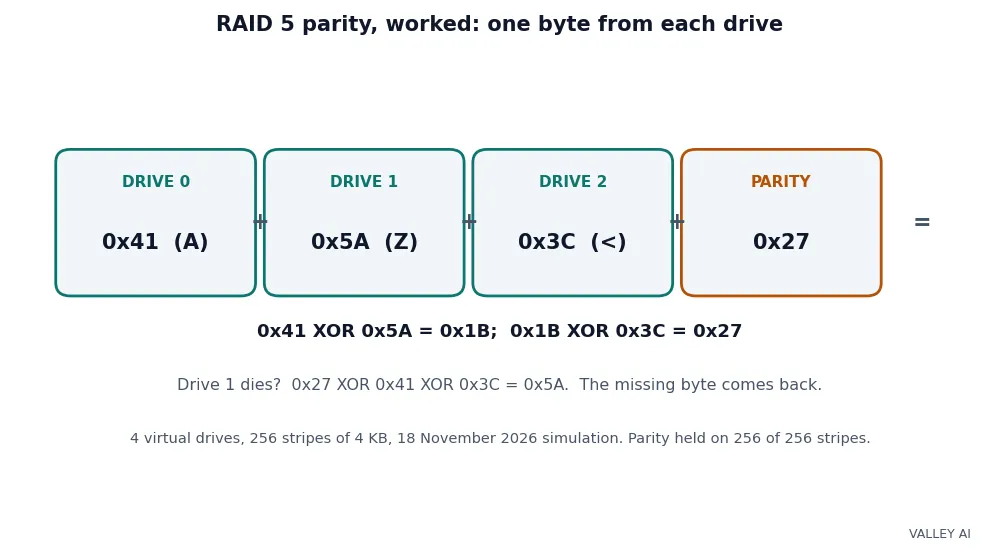
Take one stripe from the simulation. Drive 0 holds 0x41, the letter A. Drive 1 holds 0x5A, the letter Z. Drive 2 holds 0x3C, the character for less-than. XOR the first two: 0x41 XOR 0x5A gives 0x1B. XOR that with the third: 0x1B XOR 0x3C gives 0x27. The parity drive stores 0x27.
Kill drive 1 and the same arithmetic runs backward. XOR the parity with the two surviving bytes: 0x27 XOR 0x41 XOR 0x3C gives 0x5A. The missing byte returns. Every stripe in the array works the same way, byte by byte.
| Drive | Byte (hex) | Decimal | Character |
|---|---|---|---|
| Drive 0 | 0x41 | 65 | A |
| Drive 1 | 0x5A | 90 | Z |
| Drive 2 | 0x3C | 60 | Less-than sign |
| Parity drive | 0x27 | 39 | Computed by XOR |
I ran that idea through a simulation on 18 November 2026. Four virtual drives of 1 MB each, 256 stripes of 4 KB, data drawn from a seeded generator. Drives 0, 1, and 2 held data. Drive 3 held XOR parity. Parity held on 256 of 256 stripes.
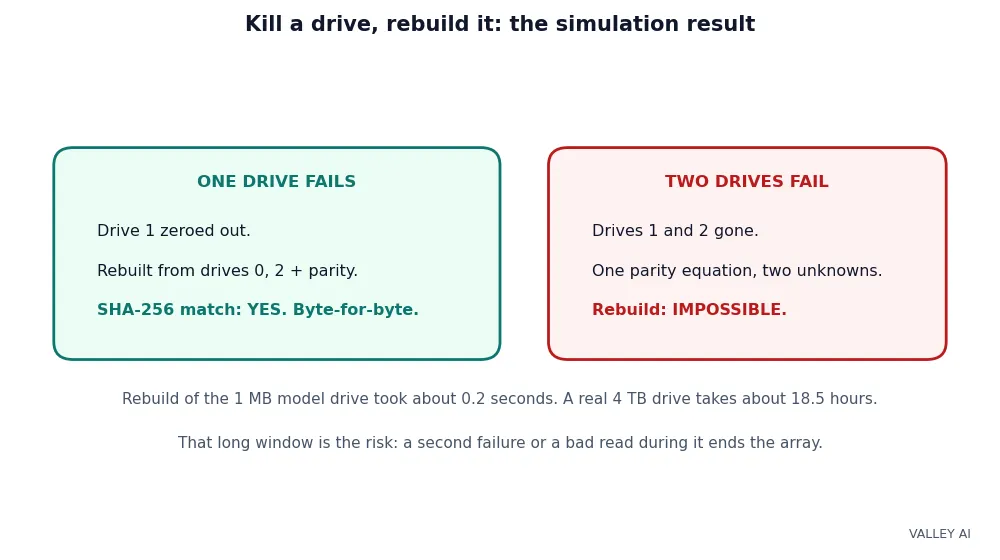
Then I zeroed drive 1 and rebuilt it from the other two data drives plus parity. The rebuild took about 0.2 seconds. The rebuilt drive matched the original byte for byte, SHA-256 identical. Then I killed a second drive. With two members gone, one parity equation cannot solve for two unknowns, and the rebuild failed. The data on those stripes was unrecoverable.
Read the model for what it is. Four 1 MB virtual drives rebuild in a fifth of a second. A real array of 4 TB drives takes about 18.5 hours to rebuild while lightly loaded, and longer under use. The model proves the parity rule works. It says nothing about how fast a real controller rebuilds, and nothing about the read error that can strike during those 18.5 hours.
What does parity cost you? One drive of capacity. Four 4 TB drives give 12 TB of usable space, and the operating system reports about 10.9 TiB. The fourth drive holds parity, and parity is the price of surviving one failure.
What RAID Cannot Protect
A rebuild reads every surviving drive end to end. On a 4×4 TB RAID 5 array that means reading 12 TB while the array runs degraded. The calculator figure for that rebuild is about 18.5 hours lightly loaded, and a busy array takes longer.
Every hard drive carries a rated unrecoverable read error rate, the URE rate. Desktop and NAS drives rate at one error per 10^14 bits read, about one error per 12.5 TB. Enterprise drives rate ten times better, one per 10^15 bits. WD Red Plus lists under 1 in 10^14, while current Seagate IronWolf 6, 8, and 10 TB models list 1 in 10^15.
Apply the rated worst case to the 12 TB rebuild and the chance of at least one bad read lands near 9.2%. That figure is a model built on the rated maximum, and real drives usually read better than their rating. Treat it as a ceiling on the risk, and check the datasheet of the exact drive you buy.
A bad read during a rebuild breaks the stripe it hits. The parity equation needs every bit. Some controllers mark that stripe bad and carry on. Some stop the rebuild. RAID 6 survives the same event because it keeps a second parity drive, and that is why large drives push buyers toward RAID 6.
Deletion, ransomware, theft, fire, and a failed NAS box all take the files with them. RAID guards against a dead drive and nothing else. A backup copy on another device, or in another place, is the only answer to those. Keep a copy of the files that matter on a USB flash drive or a second drive stored elsewhere, and test that the copy opens.
The Network Ceiling: 1 GbE, 2.5GbE, and 10GbE
Two ceilings cap a transfer. The drives set one. The network link sets the other. The slower of the two decides the copy speed, and in most homes the link is the slower one.
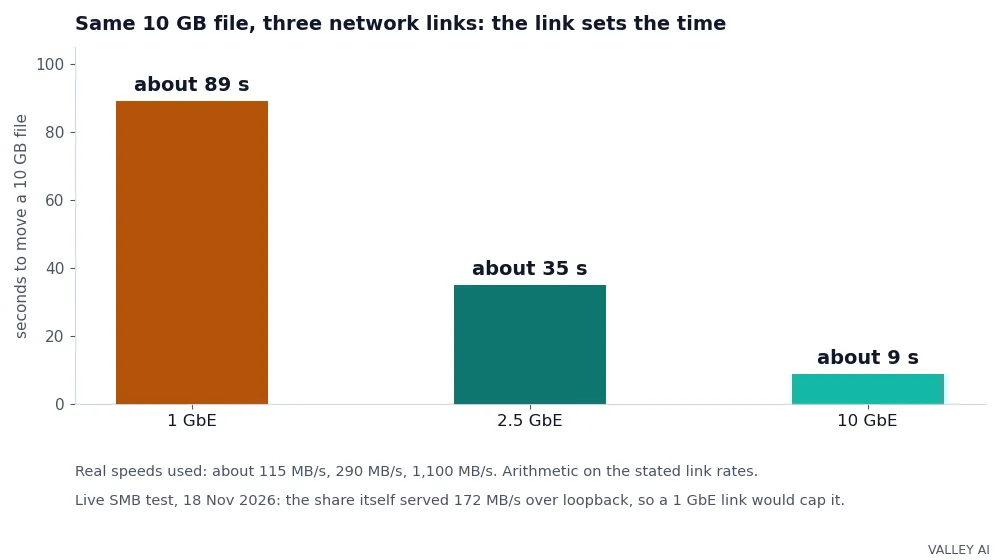
Link speeds convert cleanly. A 1 GbE link carries 1 gigabit per second, 125 MB/s before overhead. Real transfers land near 100 to 115 MB/s. A 2.5GbE link carries 312.5 MB/s and lands near 290 MB/s in practice. A 10GbE link carries 1,250 MB/s and lands near 1,100 MB/s. Each step needs the port, the cable, and the switch port to match.
The SMB test shows the split. The share served 172.4 MB/s up and 199.3 MB/s down over loopback, past the 125 MB/s a 1 GbE link allows. The server side was ready. A 1 GbE link would have capped the same transfer near 115 MB/s. The drives were never the limit.
| Link | Real speed | 10 GB file |
|---|---|---|
| 1 GbE | About 115 MB/s | About 89 seconds |
| 2.5GbE | About 290 MB/s | About 35 seconds |
| 10GbE | About 1,100 MB/s | About 9 seconds |
Times are arithmetic on 10,240 MB at the stated real speeds. Check your own ceiling before buying. Read the link speed on the NAS dashboard and on the switch port. If both read 1 GbE, faster drives change nothing. Storage speeds inside the box matter only after the link stops capping them.
NAS vs Cloud, DAS, and SAN
Four ways to store files, four different trade-offs. A NAS keeps files on hardware you own, on your network. Cloud storage rents space from a provider and reaches it over the internet. DAS plugs straight into one computer. A SAN serves blocks to servers over a dedicated network.
| Storage | Where files live | Who can reach them | Cost shape | Best for |
|---|---|---|---|---|
| NAS | On your hardware, on your network | Every device on the LAN | Upfront hardware cost | Shared files at home or in a small office |
| Cloud storage | On a provider’s servers | Any device with internet | Monthly fee that grows with data | Files that must follow you anywhere |
| DAS | On a drive attached to one computer | That computer only | Upfront hardware cost | Storage for a single machine |
| SAN | On shared storage behind servers | Servers on the storage network | High upfront infrastructure cost | Block storage for servers |
Ownership is the NAS advantage. No monthly fee grows with the data, and the files stay in the house. The cloud advantage runs the other way: no hardware to maintain, and the files follow you anywhere with internet. Many homes run both, NAS for the main copy and cloud for the off-site backup.
Match the shape to the sharing pattern. DAS suits one computer. A SAN suits servers that need raw blocks. A NAS suits a household or a small office where several people share the same files. Pick the shape first, and the capacity follows.
Picking a NAS and Setting It Up
Start from the files, and work backward. Count the terabytes you hold today, then add room for three to five years of growth. Photos and video grow faster than documents. A two-bay box suits a small photo library and a couple of backups. A four-bay box suits a media collection and a household of users.
Ports come next. Hard drives stream near 200 MB/s each, so a 1 GbE link caps even a single drive. Buy 2.5GbE when the box carries SSDs or serves several users at once. Buy 10GbE only when the switch and the cabling support it, since a 10GbE port on a 1 GbE switch runs at 1 GbE.
Buy NAS-rated drives. WD Red and Seagate IronWolf lines are built for continuous running and for vibration from neighbouring drives. Check the manufacturer’s compatibility list for the exact box before ordering.
- Plug the NAS into the switch with Ethernet, and give it a fixed address.
- Create one shared folder per use: photos, backups, media.
- Set a user account per person, and give each account access only to its folders.
- Turn on the backup job that copies the NAS to a second drive or the cloud.
- Update the NAS operating system, and leave remote access off until you need it.
Can I build a NAS from an old PC? Yes. Free software such as TrueNAS turns spare hardware into a file server. The trade is time: you assemble, configure, and maintain every part yourself. A bought box trades money for that work.
Remote access needs a careful path. Open no ports on the router for the NAS management page. Use the manufacturer’s remote-access service or VPN for remote access, so the login page never faces the internet directly.
Pick the NAS That Fits Your Files
A household with photos and two laptops needs little: a two-bay box, two NAS-rated drives in RAID 1, and the 1 GbE link it already owns. The backup job matters more than the hardware.
With a media library, several users, and years of growth, the answer changes: a four-bay box, RAID 5 or RAID 6, and a 2.5GbE port with a matching switch port. Buy the bays now. Drives can follow later.
Spend the last part of the budget on the second copy. A NAS guards against a dead drive. The copy on another device guards against the rest.
Frequently asked questions
How much storage do I need in a NAS?
Count what you hold today, then double it for three to five years of growth. A photo library of 2 TB today calls for at least 4 TB usable, which means two 4 TB drives in RAID 1 or three 2 TB drives in RAID 5. Buy the bays before you need them, since adding a bay later means buying a new box.
Is a NAS safe from ransomware?
A NAS on the same network as an infected computer can be reached by the same ransomware, since the shares sit open to any logged-in user. Snapshots help: a point-in-time copy the ransomware cannot rewrite. The copy that saves the files is the one the ransomware cannot reach, on a second device or in the cloud.
Can I access my NAS from outside my home?
Yes, through the manufacturer’s remote-access service or a VPN. Both keep the management page off the open internet. Opening router ports for the NAS login page invites automated login attempts, and several NAS brands have published fixes for exactly that exposure.
How long do NAS hard drives last?
Most NAS-rated drives carry a three-year warranty and a workload rating in terabytes per year. Real life varies with heat, vibration, and hours run. Watch the NAS health report: rising reallocated sectors or a drive that runs hotter than its neighbours means order a replacement before it fails.
Do I need SSDs in a NAS?
For file sharing and backups, no. Hard drives stream fast enough to fill a 1 GbE or 2.5GbE link. SSDs pay off for virtual machines, databases, and applications that run on the NAS itself, or as a cache for files the household opens again and again.

Kaleem
Kaleem is a Computer Science graduate (Virtual University of Pakistan) and the founder and editor of Valley AI, where he publishes in-depth, tested guides on computer hardware, artificial intelligence, and how the internet works. Every guide is researched from primary sources, tested hands-on where possible, and updated when the facts change.